Your sessions on the NAS
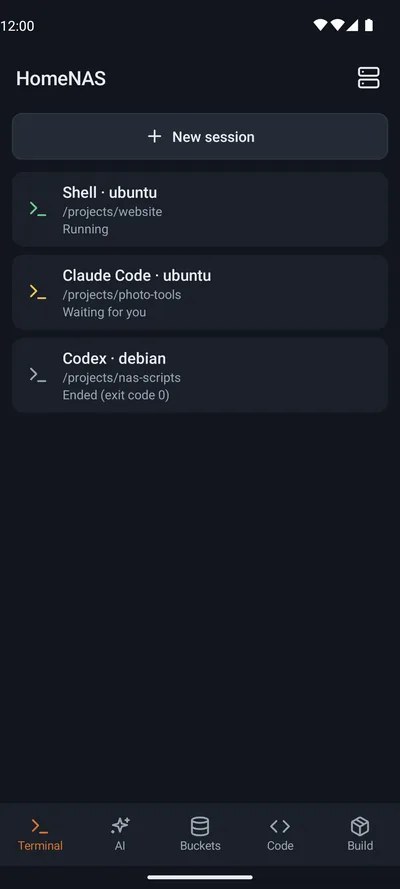
Running sessions come first, and a session that waits for your answer is marked.
Bucket & Code›Android
 Bucket & Code
您可用手機操作 NAS 上的 Bucket & Code,包括終端機工作階段、專案資料夾中的 AI 工具、儲存桶、程式碼和 App Builder 建置。
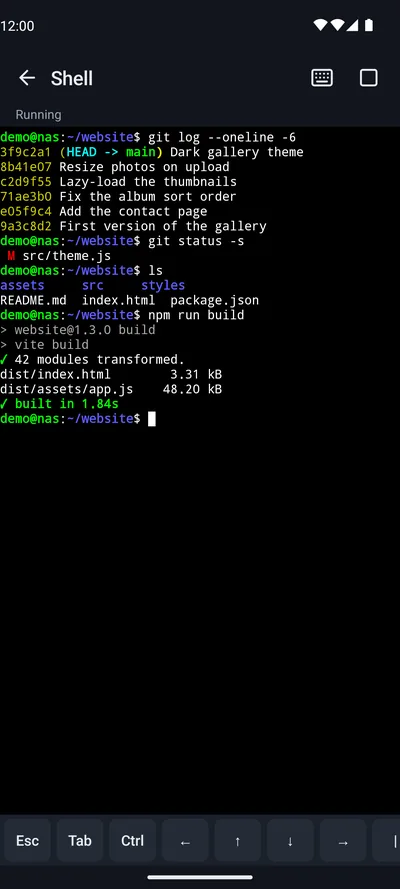
Running sessions come first, and a session that waits for your answer is marked.
Esc, Tab, Ctrl and the arrows sit above the keyboard. If the connection drops, the session stays on the NAS.
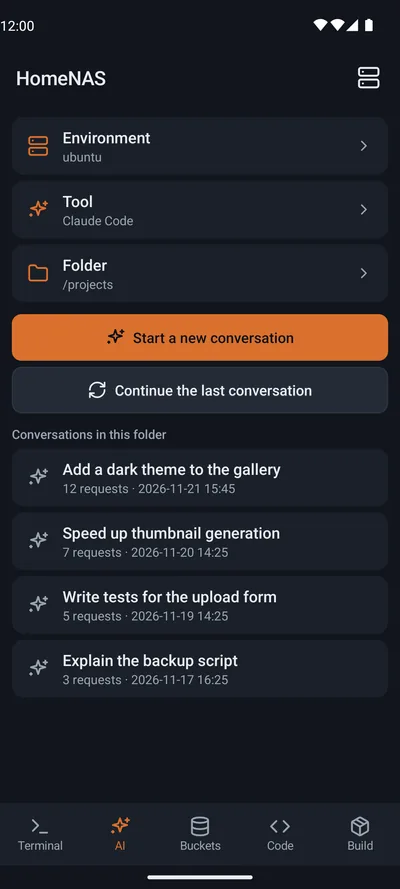
Start an AI tool installed in an environment, in a folder you pick, or continue an earlier conversation.
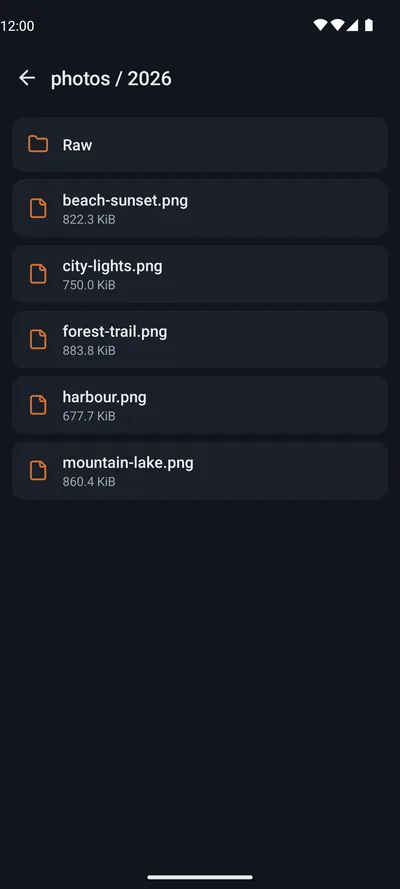
The buckets your account may read. Text files and pictures open on the phone.
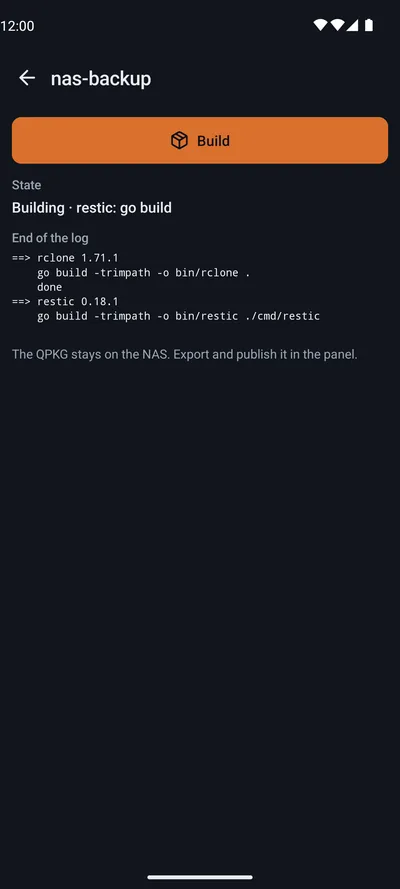
Start a build of an App Builder app after a confirmation, then watch its state and the end of its log.
和面板一樣,您需要有 developer 或 admin 角色才能使用 Terminal、AI 和 Build。
https://pub.nasutils.net/fdroid/repo38A4 C5C5 8C34 5E23 AF70 1FB7 5B22 82B6 7D74 FD50 1B66 7A8F 168F 478D 6E15 0F2A在 F-Droid 中掃描此代碼即可新增軟體庫。
F-Droid 版本與本站的 APK 使用相同的簽章。兩個版本都可以更新安裝在另一個版本上。手機會保持與您的 NAS 配對。
在連上您家中網路的電腦上,開啟 Bucket & Code 面板並前往:
頁面會顯示 QR 碼。這組碼只可使用一次,有效時間為 10 分鐘。
將手機連到與 NAS 相同的網路。在 App 中點選「Add server」,再點選「Scan the QR code」。
也可手動輸入位址和配對碼. QR 碼下方會顯示位址、配對碼和憑證指紋。請在 App 中輸入位址和配對碼。只有在 App 顯示的指紋相符時,才進行配對。
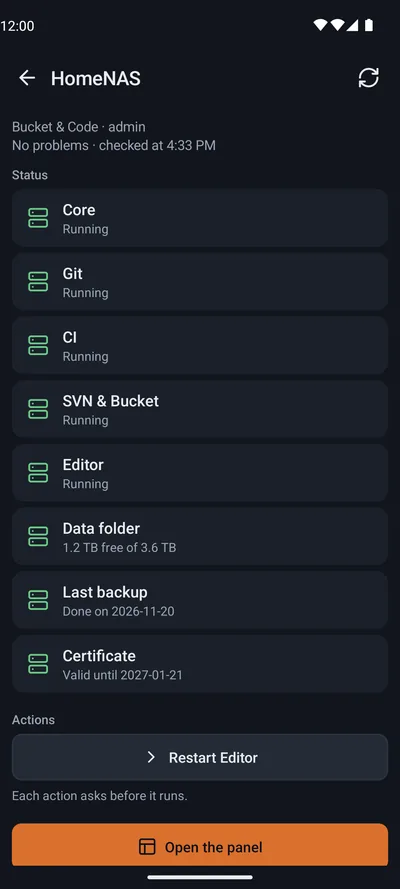
請管理員在「手機 App」頁面開啟「遠端存取」。在您的路由器上設定頁面指定的 TCP 連接埠轉送。App 就能透過該連接埠連線。這個連接埠只回應已配對的手機。
Bucket & Code 是 Silas, Mariusz Grzybacz 的免費軟體。這是獨立專案,並非由 QNAP 或 Google 製作或認可;QNAP 是 QNAP Systems, Inc. 的商標。
Android、Google Play 與 Google Play 標誌是 Google LLC 的商標。本站選單中的 Android 機器人是根據 Google 建立及分享的作品重製或修改而成,並依照創用 CC 姓名標示 3.0 授權中的條款使用。