Set up a Git server on a QNAP NAS
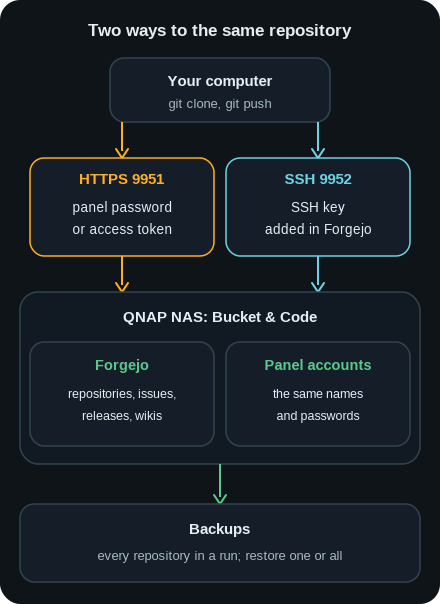
Bucket & Code Server IDE runs a Git server, Forgejo, on your QNAP NAS. You clone and push over HTTPS or SSH, and everyone signs in with a panel account. Forgejo adds issues, pull requests, releases, wikis and LFS to each repository.
01Install Bucket & Code
You need QTS 6.0 or QuTS hero 6.0 or newer and a QNAP NAS with an x86_64 processor (Intel or AMD).
- In App Center open ⚙ Settings → App Repository → Add. Name it
NASutilsand pastehttps://nasutils.net/repo.xml. Skip this step if the repository is already there. - Install Bucket & Code Server IDE and open it, or go to
https://<NAS address>:9951/. - On Set the administrator password, type a password of at least 10 characters twice. You can do it only from your local network, within 60 minutes of the package’s start.
02Turn on Git
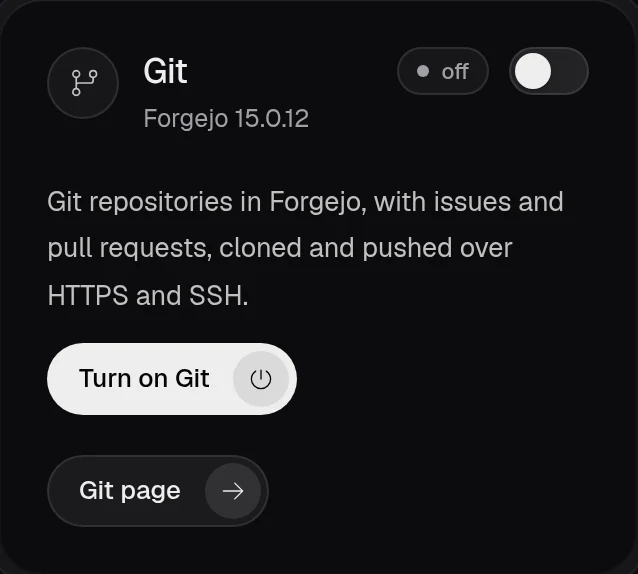
On the Overview, an admin presses Turn on Git on the Git tile. The package prepares Forgejo, adds every panel account to it and starts it. The tile shows running when Forgejo is ready, and Open Forgejo on the Git page opens it.
03Create or import a repository
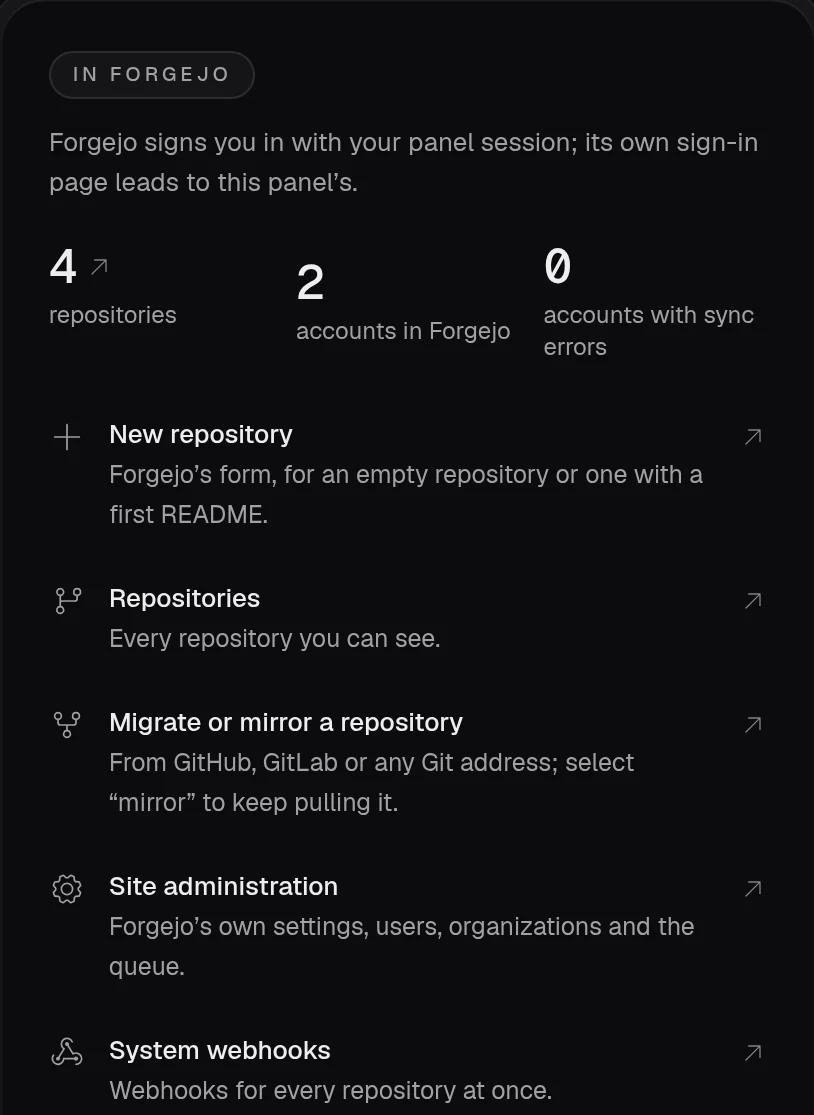
Both links are on the Git page, for accounts with the developer or admin role.
- New repository opens Forgejo’s form for an empty repository or one with a first README.
- Migrate or mirror a repository copies one from GitHub, GitLab or any Git address. Select “mirror” and Forgejo keeps pulling the changes.
04Clone over HTTPS or SSH
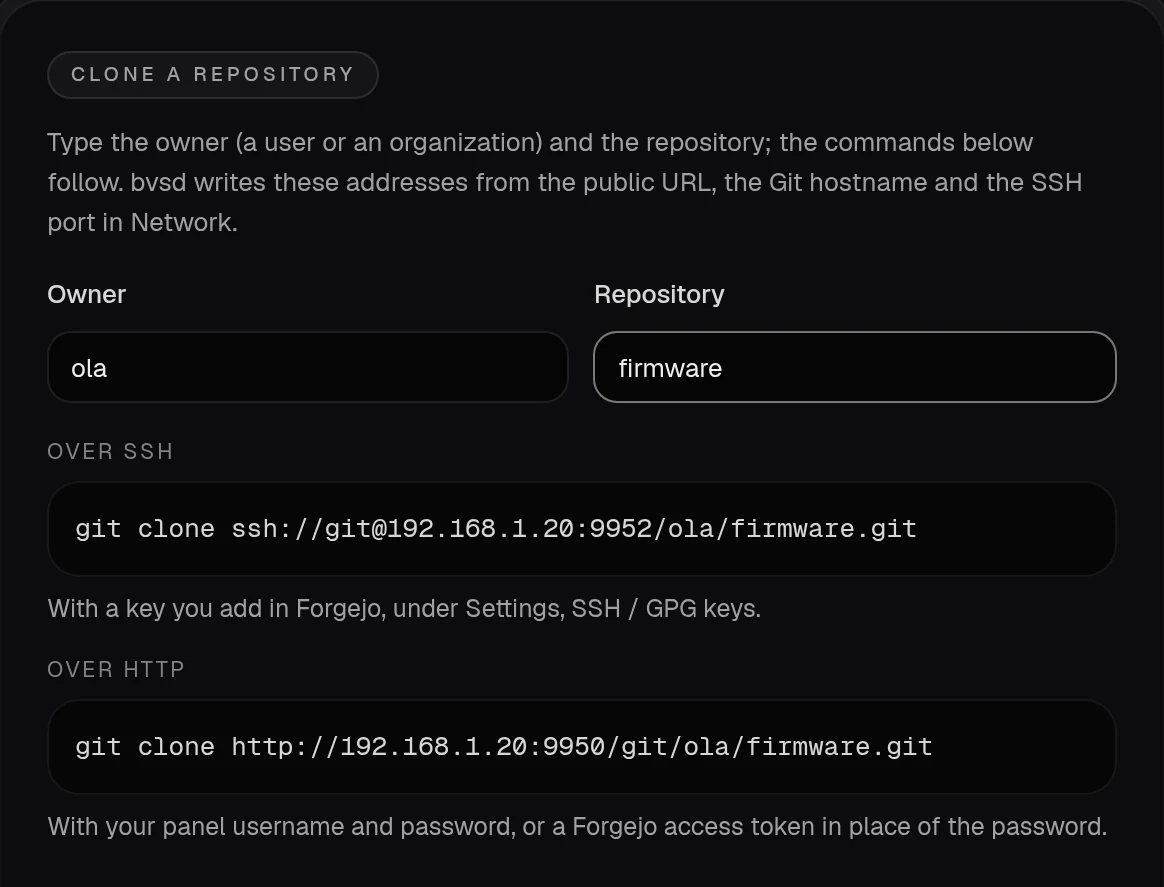
On the Git page, type the owner and the repository under Clone a repository. The page shows both commands. Without a public URL it shows the HTTP address on port 9950; the HTTPS address in the table works too.
| Protocol | Address | You sign in with |
|---|---|---|
| HTTPS | https://192.168.1.20:9951/git/ola/firmware.git | your panel username and password, or a Forgejo access token |
| SSH | ssh://git@192.168.1.20:9952/ola/firmware.git | an SSH key added in Forgejo: Settings → SSH / GPG Keys |
In this example the NAS is at 192.168.1.20, the owner is ola and the repository is firmware. The package sets no size limit on a push. Through a Cloudflare Tunnel a request can carry up to 100 MB.
05Give people access
Every panel account is a Forgejo account with the same name and password. An admin adds accounts on the Users page, and a repository’s owner gives them access in Forgejo.
| Role | What it does in Git |
|---|---|
| viewer | reads repositories; Forgejo rejects a push from this account |
| member | also pushes to a repository with write access, if a developer or an admin owns it and, with CI on, its Actions are off |
| developer | also makes and migrates repositories |
| admin | everything, with Forgejo’s site administration |
A developer is root on the NAS: the account’s editor terminal and scheduled jobs run as root. For someone who only pushes to repositories, the member role is enough.
Over HTTPS, an account with two-factor authentication uses a Forgejo access token in place of the password (Settings → Applications in Forgejo). SSH keys work as before.
06Show a public repository without an account
Make the repository public in Forgejo, then turn on Public browsing on the Git page. Anyone who reaches Forgejo can then read the files and the history, see the releases, download an archive and clone over HTTPS. For a private repository Forgejo answers “not found”. Pushing still needs an account.
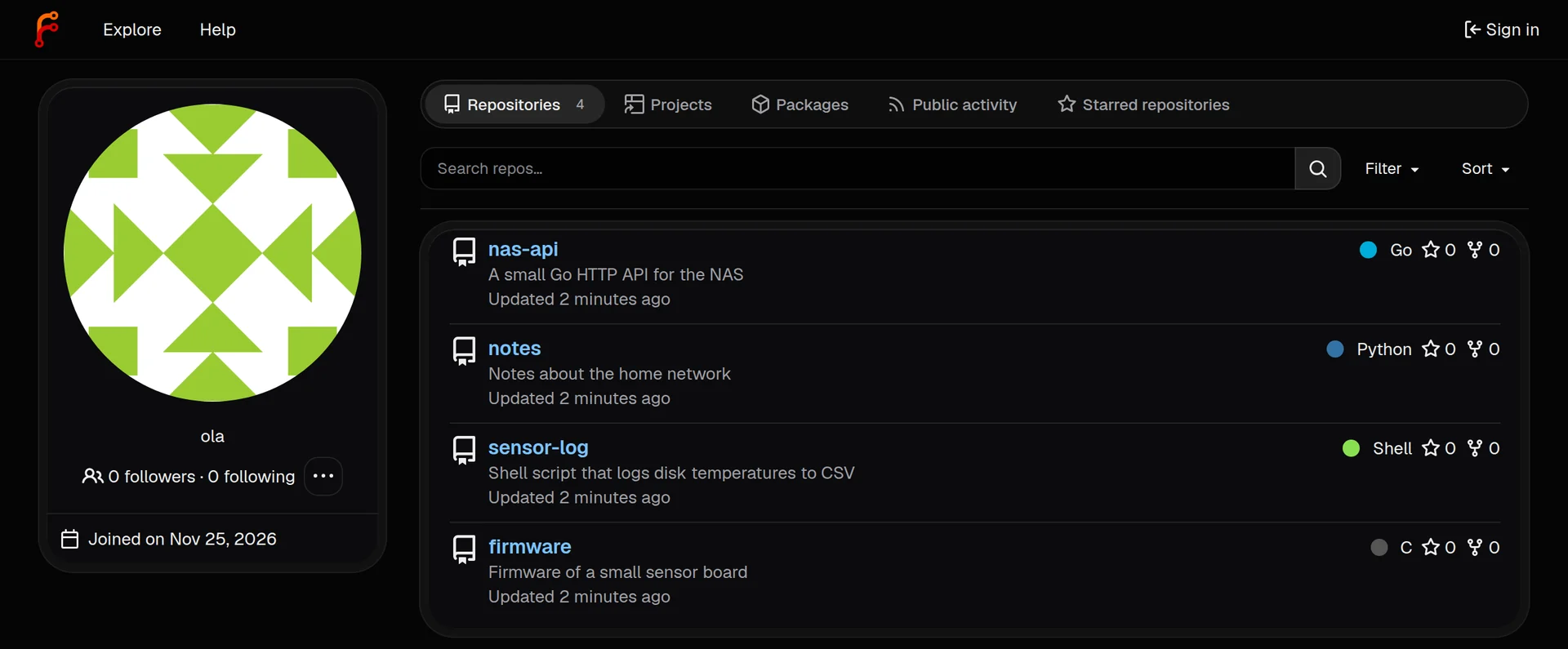
07Reach it from outside
- The Publish page puts Forgejo on a name of your own domain through a Cloudflare Tunnel, without opening a port on the router. The domain’s DNS must be at Cloudflare, and Public browsing must be on. The tunnel carries HTTPS, so SSH works in your network only.
- Git over SSH from outside needs a port forward on the router to port 9952. Set the port and the name that clone commands show on the Network page.
08Back up the repositories
An admin sets backups on the Backups page. Scheduled backups are off on a new installation; once on, they run daily by default. Back up now makes one at any time. A backup contains every repository with its wiki and LFS files, and Forgejo’s database. Verify checks a whole backup and runs git fsck on every repository. Restore puts back one repository while the modules keep running, or everything.
How to copy backups to another folder, another server or the cloud: Backups in Bucket & Code Server IDE.
09Fix connection and push errors
| What you see | What to do |
|---|---|
| git does not accept the certificate | The package makes a self-signed certificate at its first start. Clone over SSH, or add a certificate your computer trusts: Network → Add your own certificate. |
| git does not accept the password | If the account has two-factor authentication, use a Forgejo access token. |
| The push is refused | Check the account’s role (Users) and its write access to the repository (Forgejo). The table in Give people access says what each role does. |
| SSH through your public name does not answer | A Cloudflare Tunnel carries no SSH. Use the NAS’s address in your network, or HTTPS. |