Your domain on your NAS: website, DNS and mail from the first day
Three apps from this site’s App Center repository run a whole domain on one QNAP NAS. WebPortico serves the website, TurboDNS is the domain’s DNS server, and MailServerPro handles its mail. When you add the site, WebPortico sends TurboDNS every record the domain needs. These are the records of TurboDNS’s hosting template, filled in with the NAS’s public address, and MailServerPro’s mail records. Using example.com, this guide starts from a NAS without these apps and ends with a website, a mailbox and a test message.
- Installthree apps
- Mailadministrator, host name, DKIM
- SiteAdd site, preview, apply
- Outsiderouter and registrar
- Checkcertificate, a test message
The WebPortico pictures come from WebPortico 0.16.1 with demonstration data. The TurboDNS and MailServerPro pictures were taken on a test NAS with TurboDNS 1.2.0 and MailServerPro 0.5.0, with each field filled in as this guide says; the domain’s page with its DNS note comes from MailServerPro 0.5.1. The examples use the domain example.com, the public
address 192.0.2.10 and the NAS’s local address 192.168.1.20. Replace them with your own.
01What you need
First, four terms that all three apps use:
- A record is one entry in a domain’s DNS. An A record gives an IPv4 address, AAAA an IPv6 address, MX the mail server, and TXT a piece of text, such as the mail rules. A CNAME points to another name, which is looked up instead.
- A zone is all the records of one domain.
- A name server holds a zone and answers questions about its records. The registrar, the company that sold you the domain, tells the rest of the internet which name servers answer for it.
- A glue record is a name server’s IP address, kept by the registrar. It is needed when the name server’s name lies inside the domain it serves, such as
ns.example.comforexample.com. Without it, nobody could find that name server.
You need:
- A domain that you own, and the right to change its name servers and add glue records at the registrar.
- A QNAP NAS with an Intel or AMD processor (x86_64) on QTS 6.0 or QuTS hero 6.0 or newer. The three apps are published for x86_64 only.
- A public IPv4 address that reaches the NAS, with the router forwarding the ports from section 06 to it. A fixed address is best: when it changes, you have to send the records to TurboDNS again and change the glue records at the registrar. If your provider shares one address among many customers (CGNAT), your connection has no public address of its own; see section 12.
- A fixed address of the NAS on the local network, so that the forwarded ports always reach it. Set it in QTS or reserve it in the router’s DHCP server.
Mail asks more of your Internet provider than a website does. Other mail servers deliver on port 25, and some
providers block that port on home connections. Many receiving servers also check the name of your public address
(its PTR record), and only the provider can set it to mail.example.com. Some refuse mail from
addresses that providers give to homes, or file it as spam. Ask your provider about all three before you count
on mail from the NAS.
02Install the three apps
- In App Center open ⚙ Settings → App Repository → Add. Name it
NASutils, pastehttps://nasutils.net/repo.xmland press Add. - Open NASutils in the left column and install TurboDNS, MailServerPro and WebPortico. The order does not matter.
- App Center’s Open button opens each app’s panel. Each panel uses a self-signed certificate, so the browser asks once whether to trust it.
| App | Panel address | First visit |
|---|---|---|
| WebPortico | https://192.168.1.20:9541/ | First sign-in: set the panel’s password |
| TurboDNS | https://192.168.1.20:9531/ | First sign-in: set the panel’s password |
| MailServerPro | https://192.168.1.20:9581/admin/ | First administrator: see section 03 |
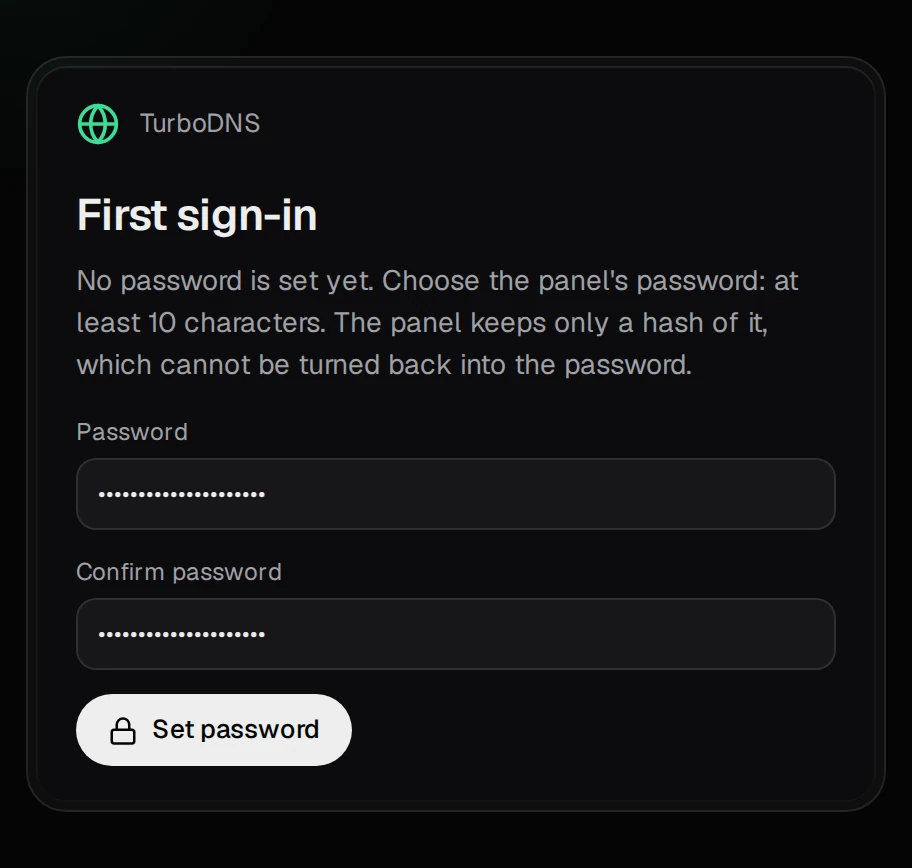
On First sign-in, type a password of at least 10 characters twice and press Set password. The page accepts it only from a computer on the local network. WebPortico’s page also takes it only within 60 minutes of the panel starting; to get that page back, restart WebPortico in App Center. The apps never make up a password and never write one down.
Right after WebPortico’s first sign-in, a fresh install asks once: Make WebPortico this NAS’s web server? Take over moves QTS’s own servers off ports 80 and 443 and gives both ports to WebPortico; section 06 lists what moves where. Not now changes nothing, and the Front server and ports page offers the same later.
03Mail first: the administrator, the host name, the DKIM key
Set up mail before the site. WebPortico sends MailServerPro’s records to TurboDNS only for a domain that MailServerPro already serves. The DKIM record goes with them only after you make the DKIM key. If mail is ready first, you apply the site’s changes once and the zone gets every record.
- The first administrator. Open MailServerPro from a computer on the local network. The
page First administrator asks for Your mail address at your domain and a password. Type
your own address, for example
anna@example.com, and a password of at least 10 characters twice, then press Make the administrator. MailServerPro makes the domainexample.com, the mailboxanna@example.comand the aliaspostmaster@example.com, which delivers to it. The same address and password sign in to this panel and to webmail. MailServerPro refuses an address at a mail provider such as Gmail, because that provider’s domain would become one of this server’s domains.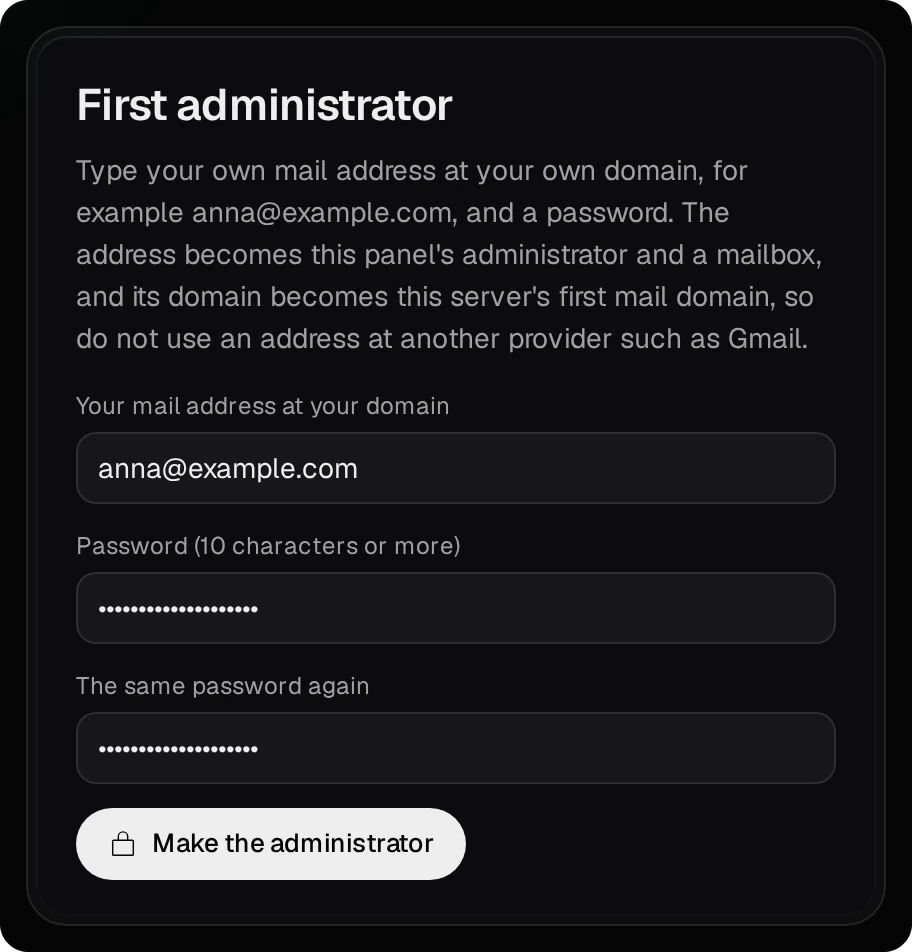
- What is left. Under Before mail for your domain works, the Overview
lists each step still open, with a button that takes you to it.
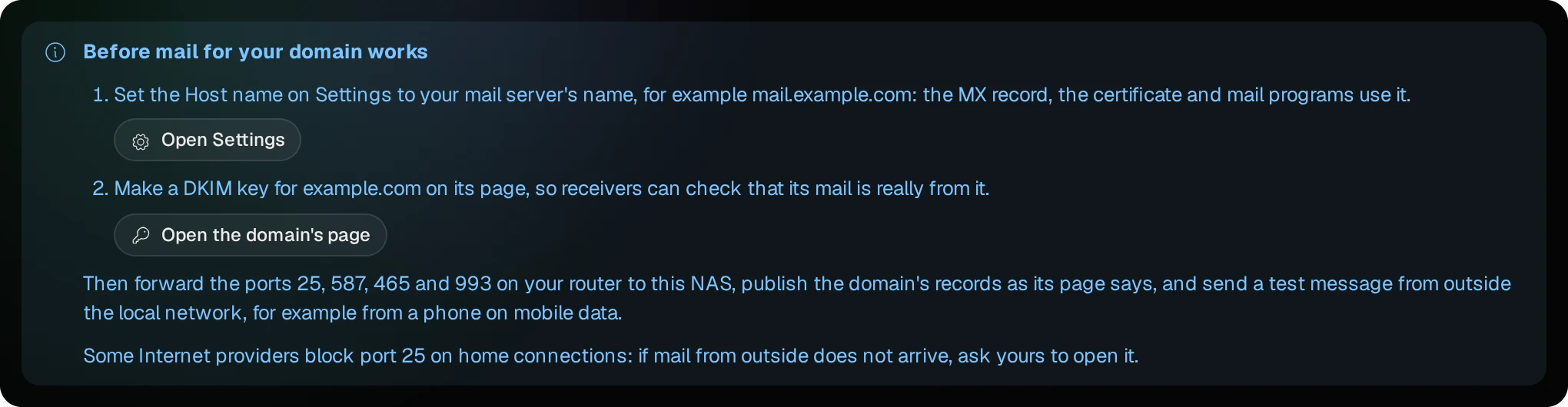
- The host name. Press Open Settings, set Host name to
mail.example.comand press Save and apply. This is the mail server’s name on the internet, used by the MX record, the certificate and mail programs. At first the field holdsmail.example.org, a stand-in to replace. Typemail.example.com: TurboDNS’s template gives the mail server that name, and the host name must be the same.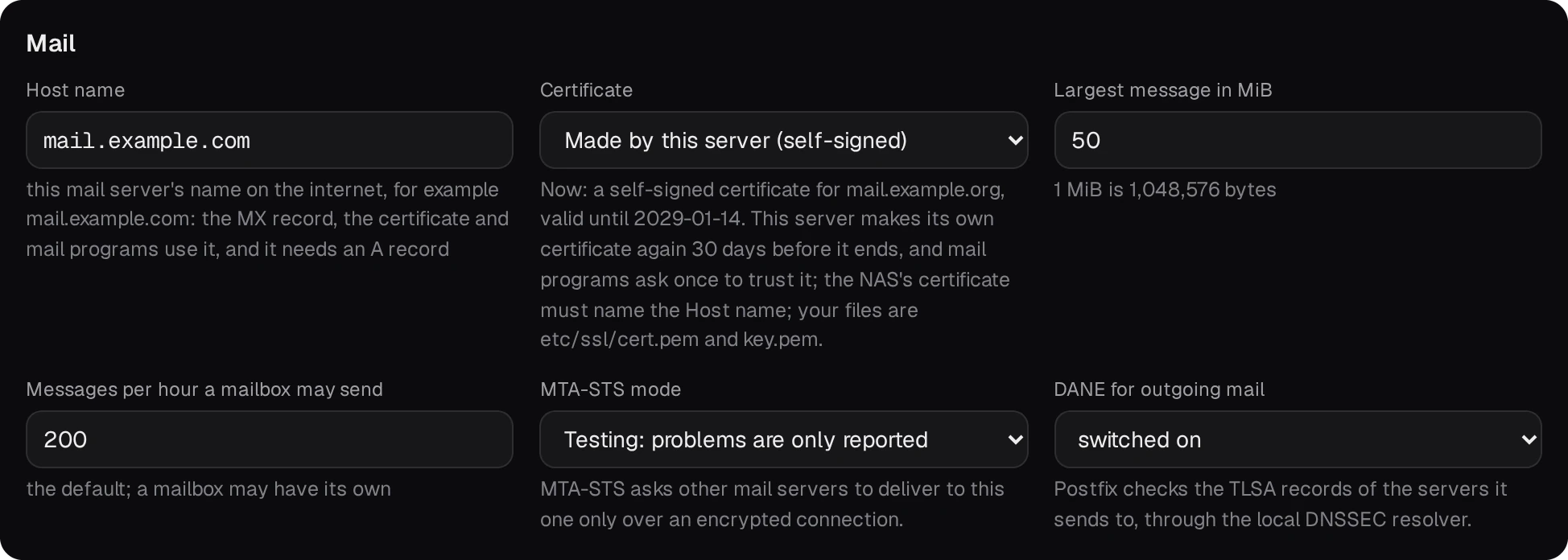
- The DKIM key. Back on the Overview, press Open the domain’s page,
then Create a DKIM key. From then on Rspamd, the spam filter, signs the domain’s mail with this key,
and receiving servers check the signature against the key’s TXT record. The record is named after the
month, for example
s202610._domainkey.example.com.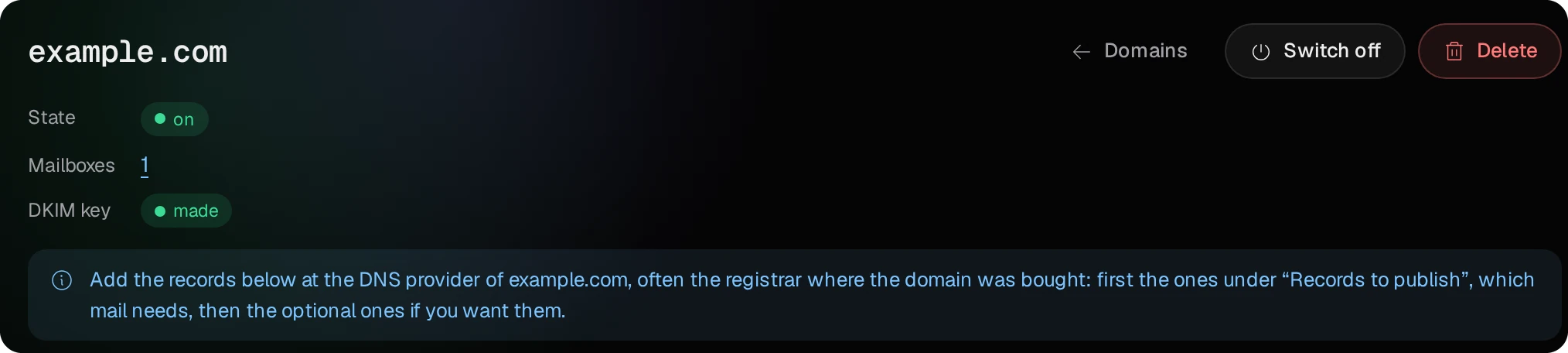
The domain’s page also lists Records to publish. TurboDNS does not answer for the domain yet, so the page says to add them at the domain’s DNS provider. Do not copy them by hand: when you apply the site’s changes in section 04, WebPortico sends these records to TurboDNS. The list is only for a domain whose DNS runs elsewhere.
Add more mailboxes on Mailboxes → Add a mailbox. Each mailbox signs in to webmail and to mail programs with its full address and its own password.
04The website: Add site
On WebPortico’s Sites page, press Add site. The first time, the panel asks Where do the sites’ folders go? With a QTS shared folder you can reach the site’s files from File Station, SMB and the editor; WebPortico’s data folder keeps them inside the app. On QuTS hero, a shared folder with Advanced Folder Permissions may lock the sites’ accounts or the web servers out. The apply then stops, explains why and asks again.
The wizard has seven steps. Nothing is saved until Preview changes in the last one.
- Domain. For Do you have a domain for this site? leave Yes, then type
example.comas Name. It cannot be changed later. Leave Also www.example.com ticked; add other names under More names, one per line.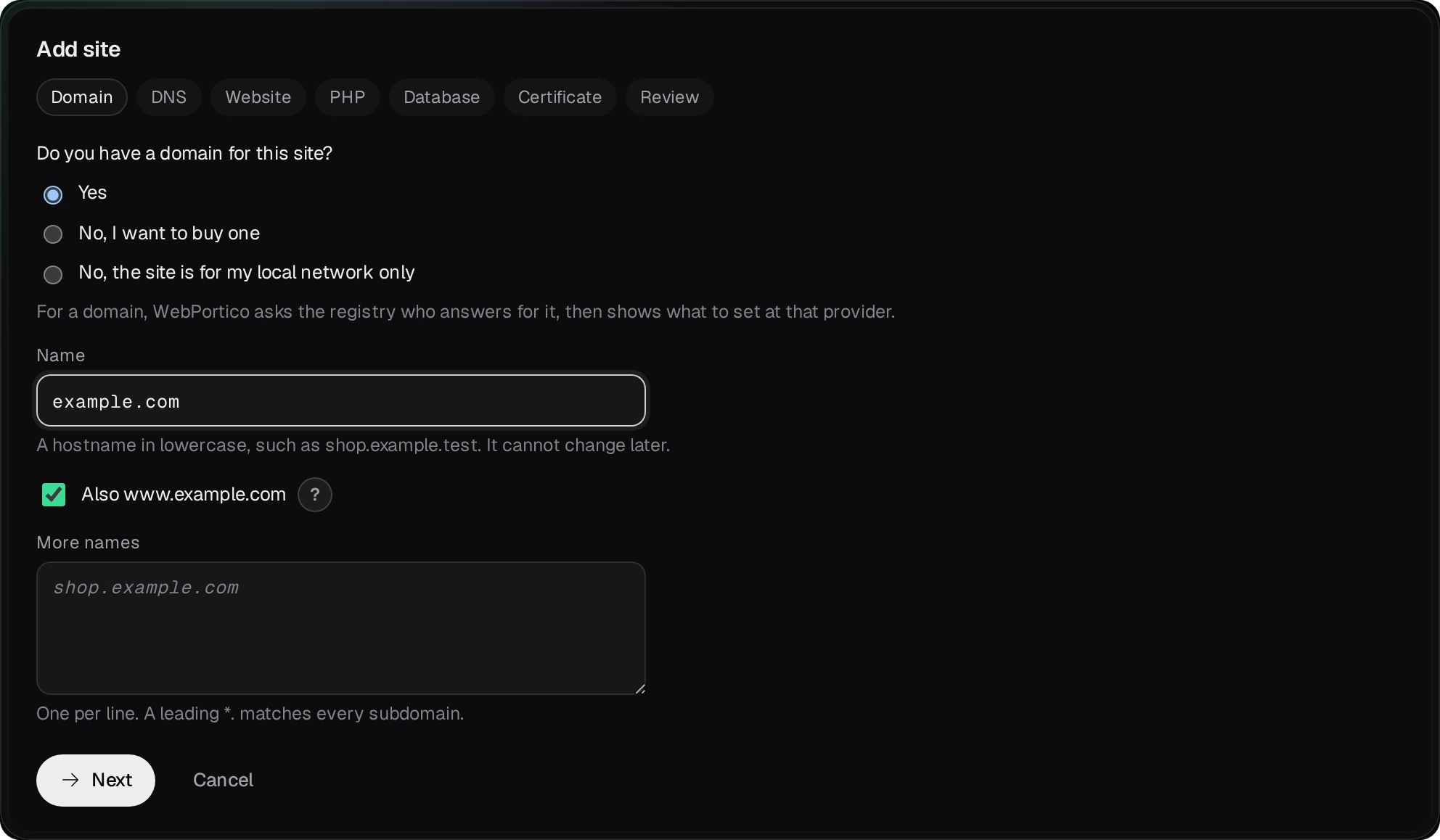
- DNS. WebPortico looks
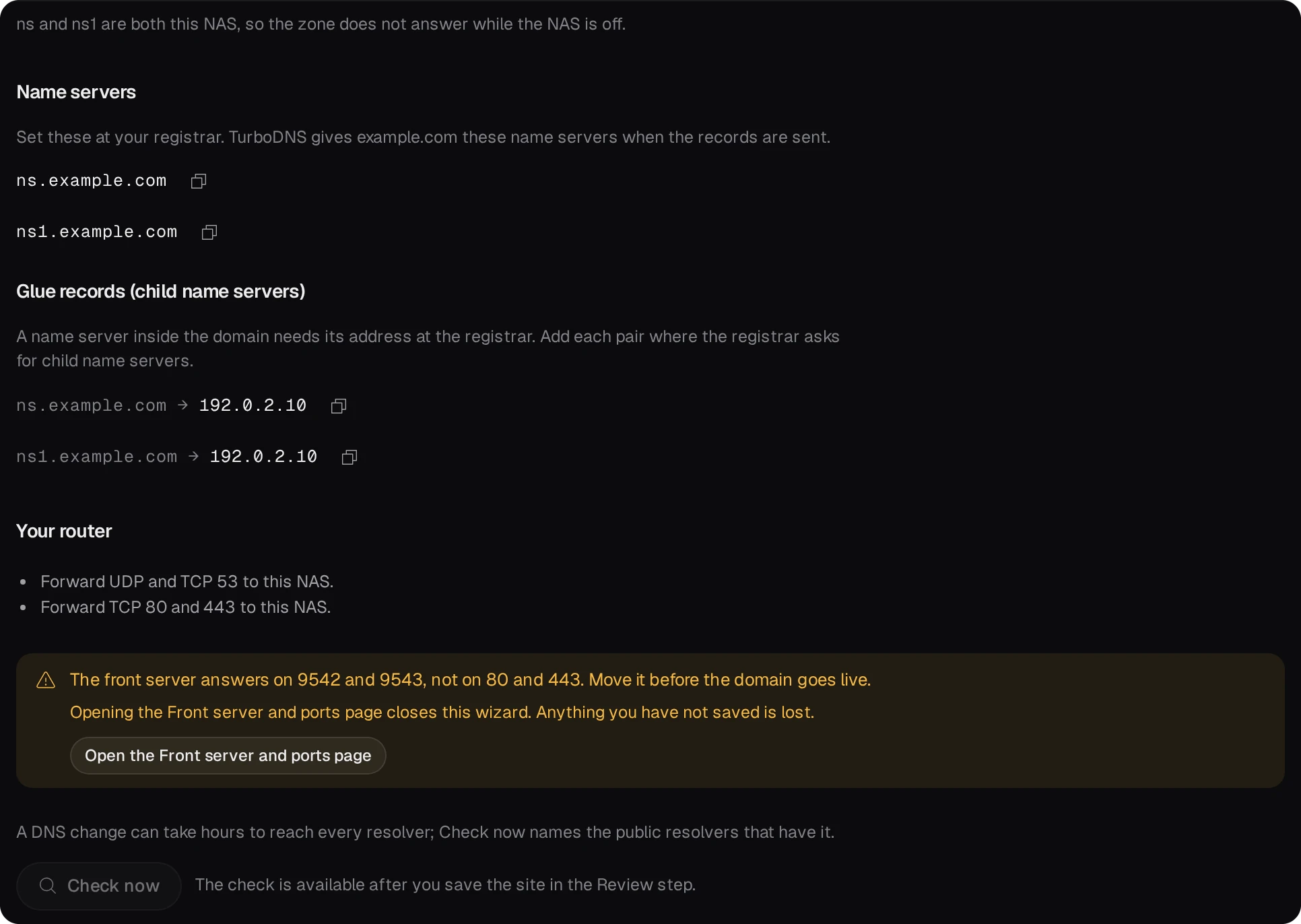
example.comup and shows its Registrar, its DNS servers and its DNS hosting, the service that answers for its names. What the step asks next depends on that answer; the domain guide shows each case. In this guide TurboDNS answers for the domain: at a DNS provider other than Cloudflare and OVHcloud, pick TurboDNS on this NAS answers for the whole domain. At Cloudflare or OVHcloud the step offers their API key or the records to add by hand instead (section 07). When the lookup cannot reach the servers above the domain, the step says Cannot find out who manages the DNS of example.com and asks Who answers for the names of example.com? Leave TurboDNS on this NAS, which is already chosen while TurboDNS runs. Pick the answer under it, Cloudflare or OVHcloud, from the zone TurboDNS keeps on this NAS, only if the domain’s DNS stays at one of those providers (section 07). The picture shows that answer. Zone is the domain you bought. The panel fills in This NAS’s public IPv4 address (it asks OpenDNS) and Its public IPv6 addresses (it reads the NAS’s network interfaces). Check both, and clear the IPv6 field if your router does not pass IPv6 to the NAS. Leave Second name server (optional) empty: the zone then gets the name serversns.example.comandns1.example.com, both on this NAS. Records to send to TurboDNS says that the zone comes from the hosting template, with MailServerPro’s records (section 05).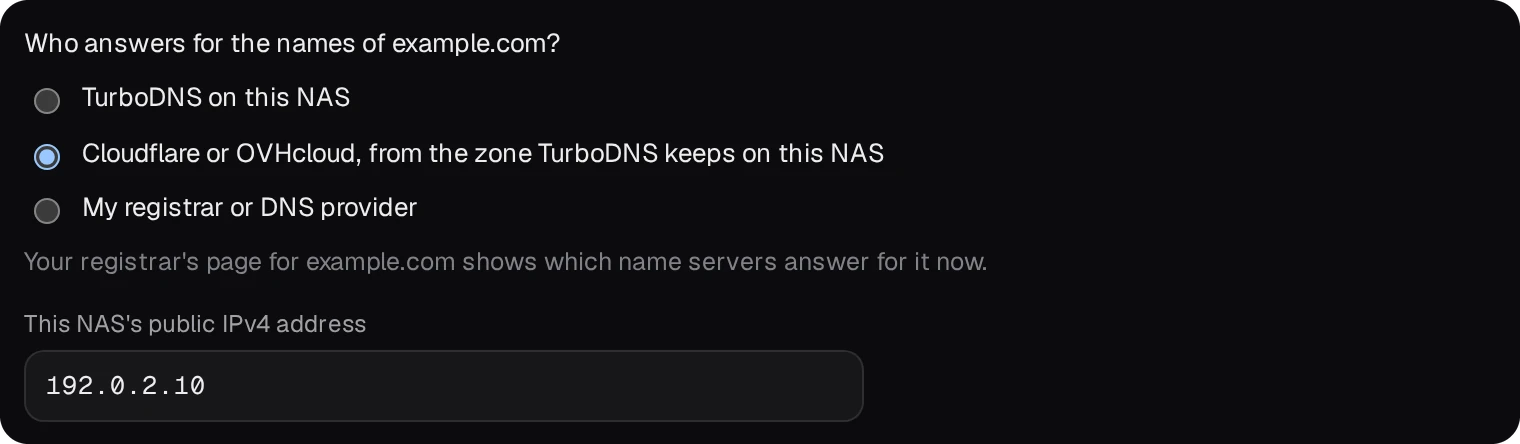 With TurboDNS answering, the step then lists what to enter at the registrar, each value with a
copy button: Name servers and Glue records (child name servers). Under Your router it
lists the ports to forward, and it warns while the front, WebPortico’s web server, is not on ports 80 and 443. Enter these after you apply the changes (sections
06 and 07).
- Website. Pick the site type: PHP for an application such as WordPress, with its own PHP; Static files for HTML, CSS and pictures; Reverse proxy to pass visitors on to
another service on the NAS or the local network. Under Web server, nginx serves the site by itself, while httpd reads
.htaccessfiles for sites that need them. Folder shows where the site’s files go.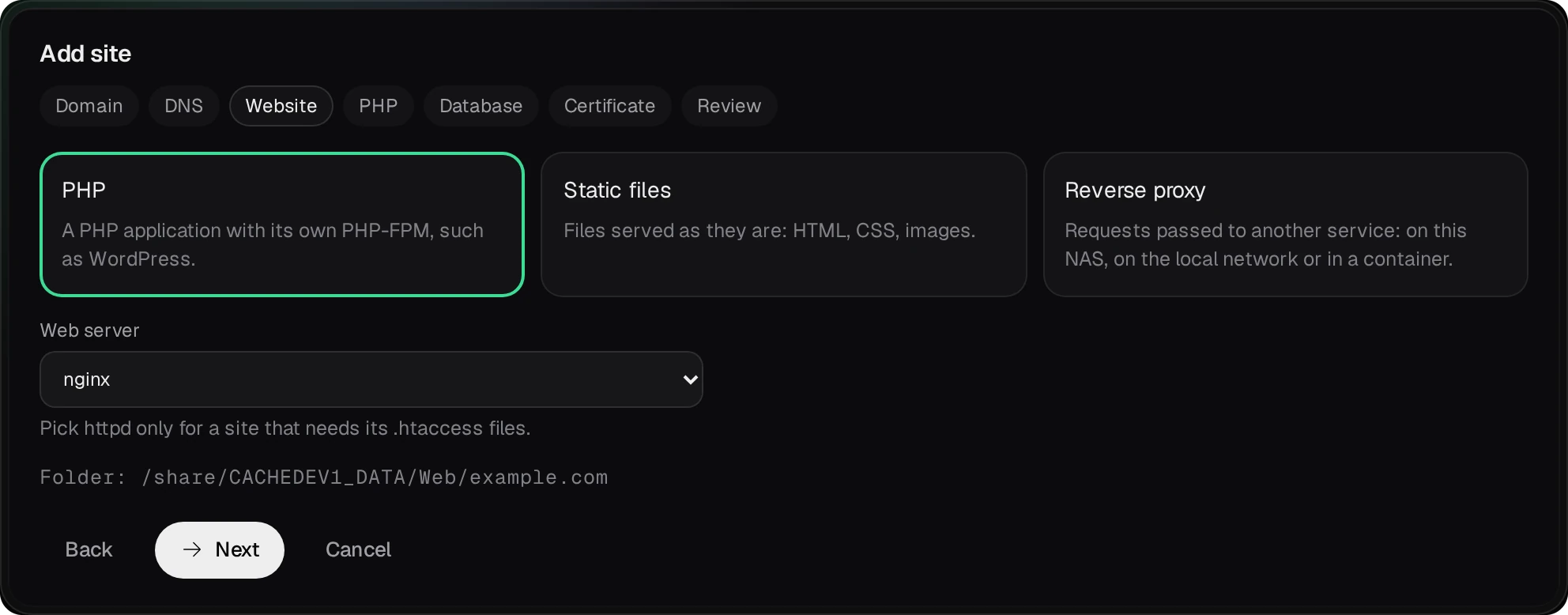
- PHP (a PHP site only). Pick the PHP version; the line under it gives the dates of its bug and security fixes. The memory limit, the largest upload, the largest form and the time a script may run start at 256 MB, 64 MB, 72 MB and 120 s, each with a line on why. Turn OPcache on now? starts at Later, when the site is finished: with OPcache on, a page can run a file’s old code for up to 2 s after you save it. The site’s PHP tab turns it on later.
- Database (a PHP site only). Database server starts at No database. Pick MariaDB, PostgreSQL or Percona Server to give the site its own Database and User. Preview changes creates them and shows the password once, so copy it right away.
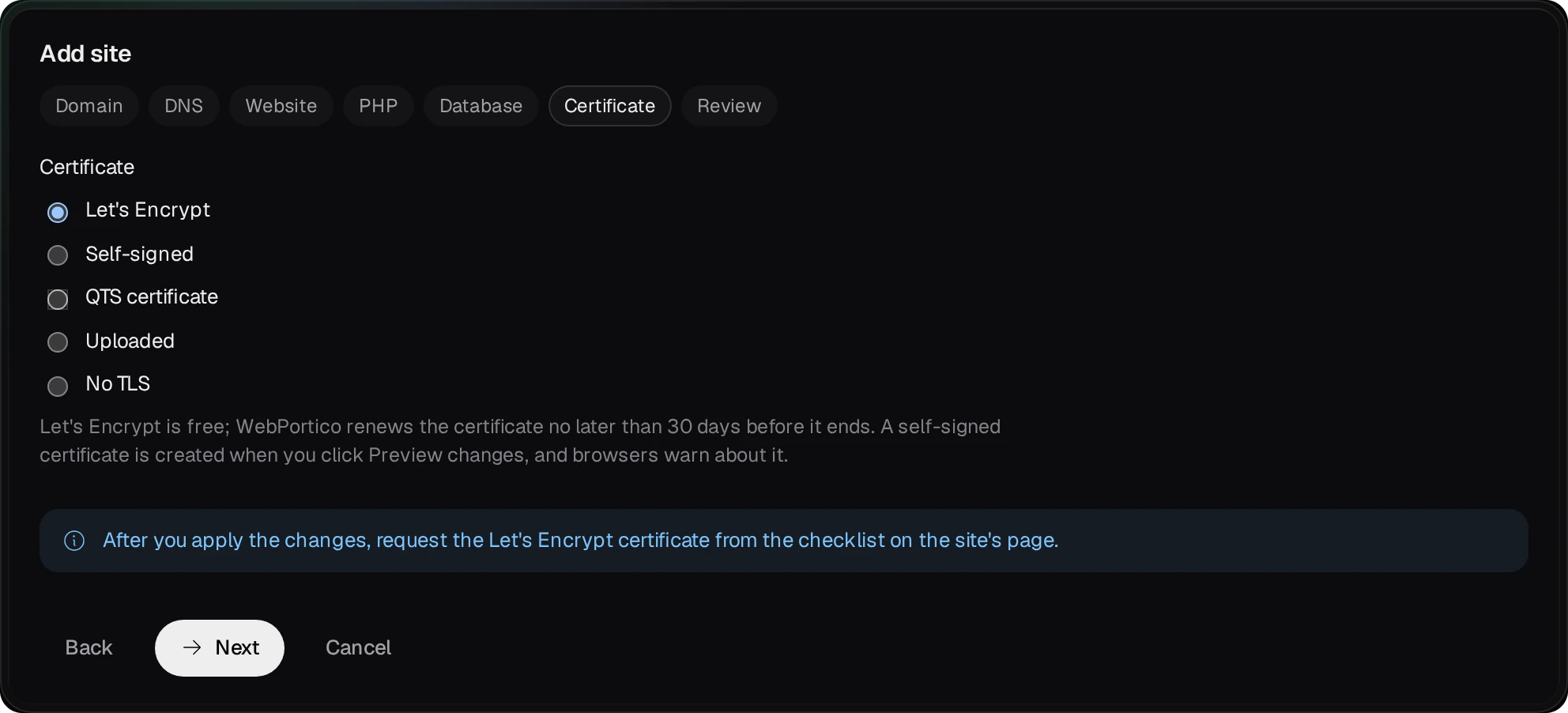
- Certificate. Leave Let’s Encrypt, a free certificate authority that browsers trust. You
request the certificate from the site’s checklist after the apply (section 08). A self-signed certificate is made when you press Preview changes, but browsers warn about it.
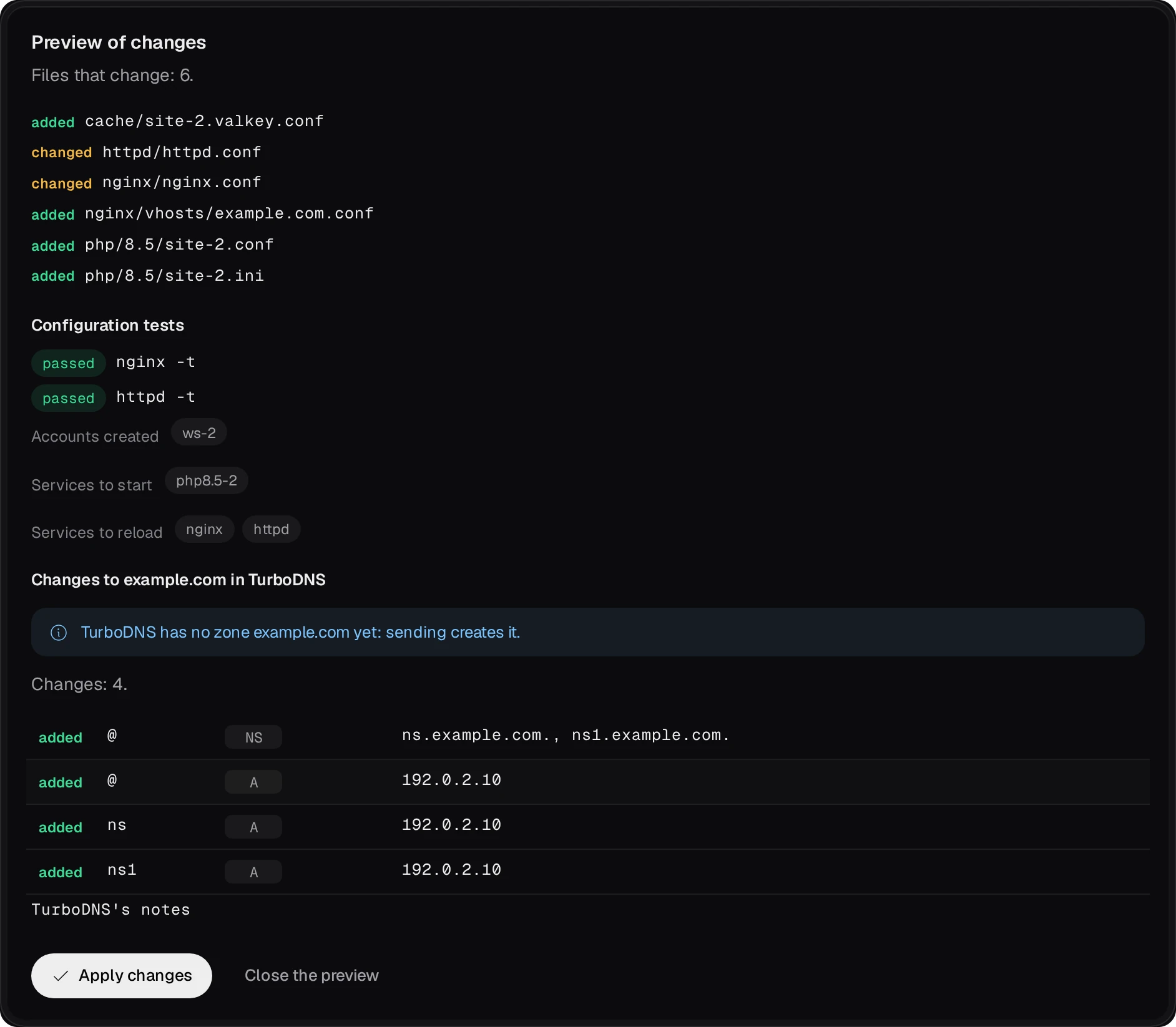
- Review. Press Preview changes. It saves the site as a draft, runs the web servers’ own checks and lists every file that will change; the site is not live yet. Below the site’s changes, Changes to example.com in TurboDNS lists every record the zone will get. Apply changes makes the site live, then sends TurboDNS’s changes. A snapshot keeps the files as they were.
The site now has a folder of its own in the sites’ folder, and visitors get whatever is in its public/ folder. Put the site’s files there with the file manager on the site’s
Files tab: Upload sends files from your computer, Extract here unpacks a ZIP or tar
archive, and a text file opens in its editor. File Station and SMB work too, and Open in Bucket & Code
opens the folder in Bucket & Code Server IDE when it runs on the NAS. Until public/ has a page, the
site answers 403. PHP may be unable to write to files that another account copied in: Fix permissions on the
Files tab gives them to the site’s own account.
Every change you make in the file manager or its editor is kept as a version on the site’s History tab. There you can see what each version changed and put back one file or the whole site; uploads, caches and files over 20 MB stay out. Changes made over SMB show there too, and Record changes keeps them as a version. To publish the site from a Git repository, for example one in Bucket & Code, enter its address and branch in the Repository card: WebPortico deploys every new commit pushed to that branch.
05The zone from the hosting template
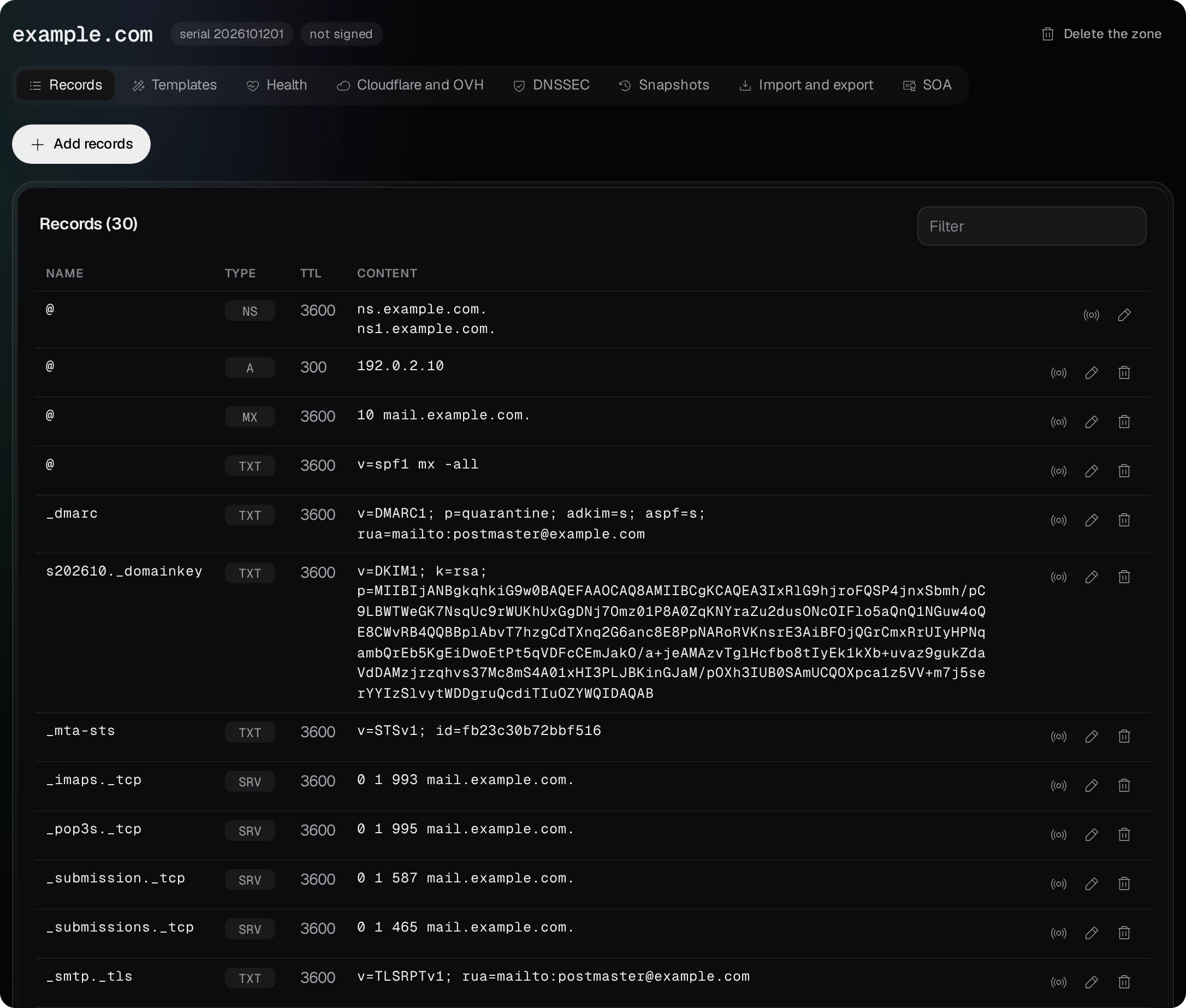
TurboDNS’s hosting template holds every record a domain needs when its website, mail and DNS run on this
NAS. With example.com and 192.0.2.10 it writes these records:
| Name | Type | Value | What it is for |
|---|---|---|---|
@ | NS | ns.example.com ns1.example.com | the name servers, both on this NAS |
@ www ns ns1 webmail
mail imap imaps pop pop3 pop3s
smtp smtps mailserver | A, and AAAA with an IPv6 address | 192.0.2.10 | the website, the name servers and the mail names point at the NAS |
ftp | CNAME | example.com | the same address as the domain |
autoconfig autodiscover | CNAME | mail.example.com | where mail programs look for their settings |
@ | MX | 10 mail.example.com | other servers deliver the domain’s mail there |
@ | TXT | v=spf1 mx -all | SPF: only the MX server sends the domain’s mail |
_dmarc | TXT | v=DMARC1; p=quarantine; adkim=s; aspf=s;
rua=mailto:postmaster@example.com | DMARC: what a receiver does with mail that fails SPF and DKIM, and where it sends reports |
_submission._tcp _submissions._tcp _imaps._tcp
_pop3s._tcp | SRV | ports 587, 465, 993 and 995 on mail.example.com | the ports mail programs use to send and read mail |
MailServerPro adds the records only it can know:
| Name | Type | What it is for |
|---|---|---|
s202610._domainkey | TXT | DKIM: the public key that checks the signature of the domain’s mail |
_mta-sts, mta-sts | TXT, CNAME | MTA-STS: asks other servers to deliver over an encrypted connection, and names the host that publishes the policy |
_smtp._tls | TXT | TLS-RPT: other servers report encryption failures to
postmaster@example.com |
_25._tcp.mail | TLSA | DANE: the hash of the mail certificate’s key; it counts only in a zone signed with DNSSEC |
TTL is how many seconds other servers may keep an answer before they ask again. The addresses have 300 seconds, so a new address reaches resolvers within five minutes; the other records have an hour. In TurboDNS the zone’s Records tab shows them all.
The template gives addresses to the names in this table. A site on another name in the domain, such as shop.example.com, gets its own A record (and AAAA, when there is an IPv6 address) from WebPortico, along with the site’s other records.
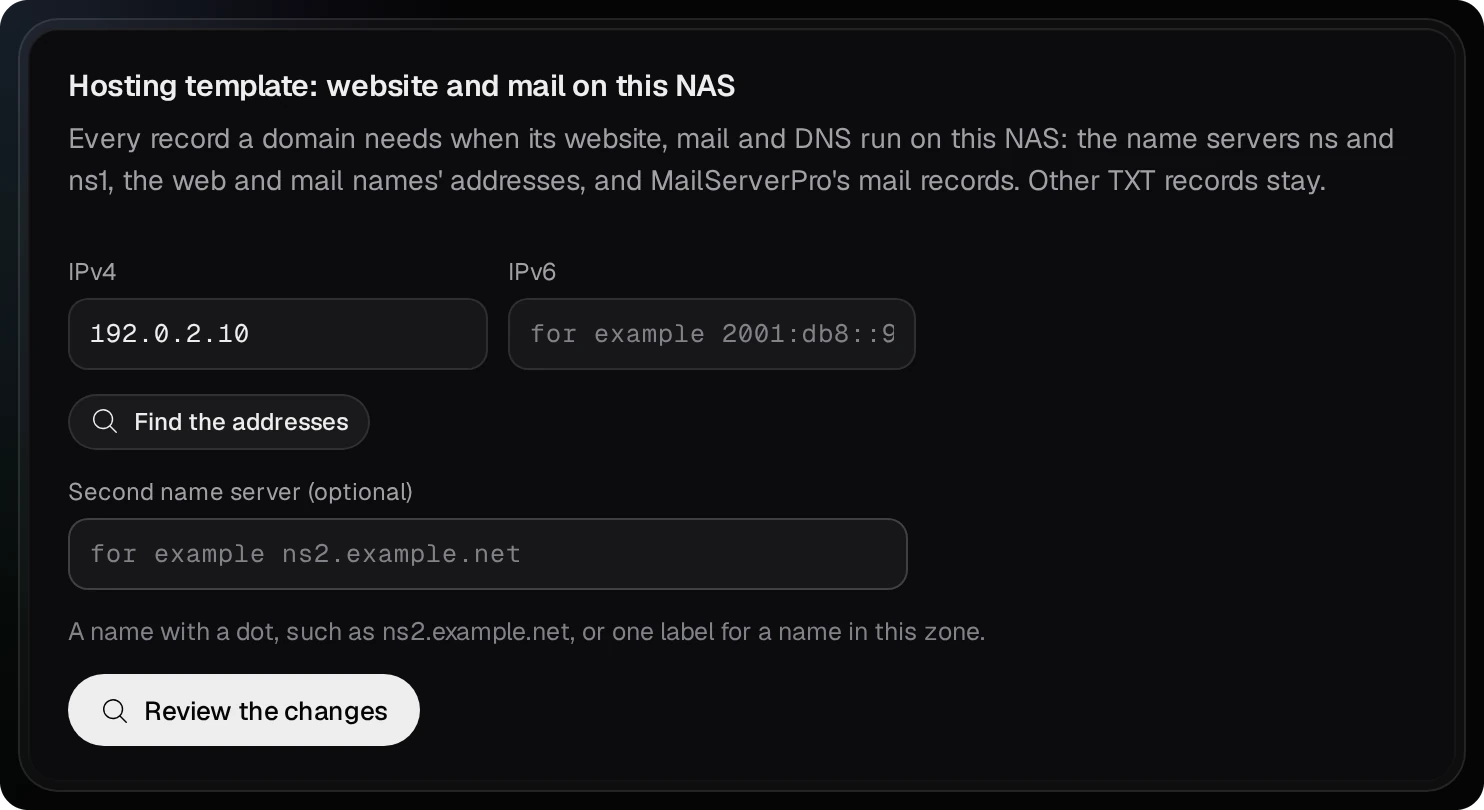
The template without a website. For a domain with mail but no site, apply the same
template in TurboDNS itself. Press New zone, type example.com and keep the name servers
ns and ns1, then open the zone’s Templates tab. On the card Hosting
template: website and mail on this NAS, enter the IPv4 and IPv6 addresses, or press Find the
addresses to fill them in. Review the changes shows the preview, and Apply the changes
writes the records. This card leaves out MailServerPro’s own records: copy each one from MailServerPro’s
Records to publish and add it on the Records tab with Add records.
06The router and the front
Forward these ports from the public address to the NAS’s local address:
| Port | Protocol | For |
|---|---|---|
| 53 | UDP and TCP | TurboDNS: other servers ask it about example.com |
| 80 | TCP | the website over HTTP, and Let’s Encrypt’s check |
| 443 | TCP, and UDP for HTTP/3 | the website over HTTPS |
| 25 | TCP | mail from other servers |
| 587 and 465 | TCP | sending from mail programs outside the local network |
| 993 | TCP | reading mail (IMAP) outside the local network; 995 too for POP3 |
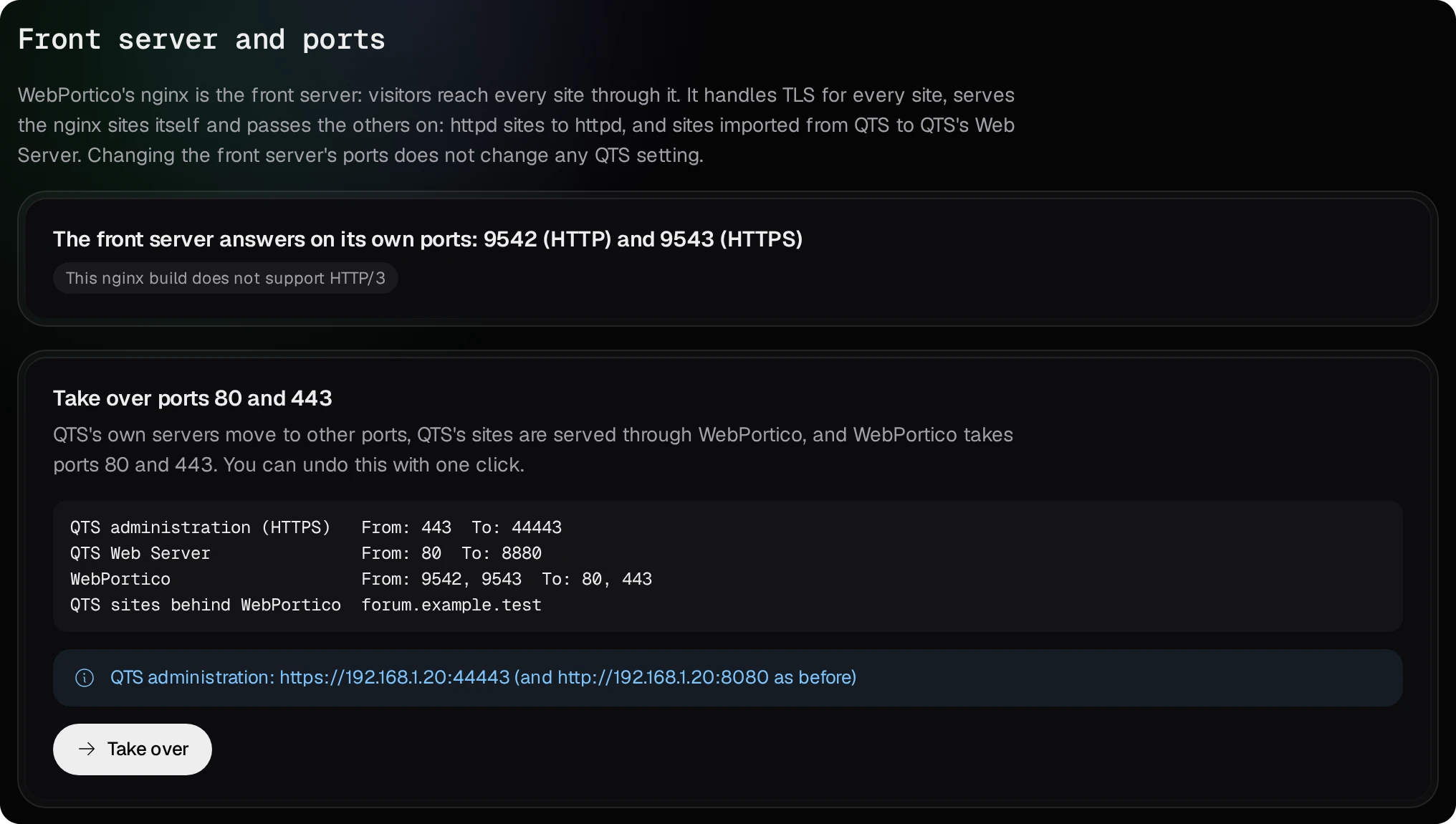
WebPortico’s nginx is the front: every visitor to every site passes through it. It listens on 9542 (HTTP) and 9543 (HTTPS) until it takes 80 and 443, because QTS often keeps those ports for itself. There are three ways to reach it:
- The takeover. While QTS’s own servers hold 80 and 443, the Front server and ports page shows Take over ports 80 and 443 with what moves where: QTS’s administration over HTTPS from 443 to 44443, QTS’s Web Server from 80 to 8880 (each to the next free port if that one is taken), and WebPortico from 9542 and 9543 to 80 and 443. QTS’s sites come in as sites behind WebPortico, and the card gives QTS’s new administration address. Take over checks each step before the next and puts everything back if one fails; Return ports 80 and 443 to QTS undoes it. The router then forwards 80 to 80 and 443 to 443.
- The front on 80 and 443 by hand. Another program on 80 or 443 is never moved: the page names it and shows the steps that free the port. When both ports are free, Move the front server to ports 80 and 443 moves it; Move the front server back to ports 9542 and 9543 undoes it.
- The front on its own ports. The router forwards 80 to 9542 and 443 to 9543, and QTS keeps
its ports. Redirect HTTP to HTTPS still sends a visitor to
https://example.comwithout a port.
UDP 443 is needed only when the Front server and ports page says HTTP/3 on. Many routers do not pass a request from the local network to their own public address, so test from outside, for example from a phone on mobile data.
07At the registrar
When you apply the site’s changes, WebPortico sends the zone to TurboDNS, and from then on TurboDNS answers for it. Then, at the registrar:
- Create the glue records: the host
ns.example.comwith the address192.0.2.10, and the hostns1.example.comwith the same address. Registrars call them glue records, child hosts or private name servers. - Set the domain’s name servers to
ns.example.comandns1.example.com.
The site’s checklist shows the same values with copy buttons, under At the registrar. A change at the registrar takes hours to reach every resolver; you can carry on in the meantime.
ns and ns1 meet a registrar’s rule of two name servers, but they are the same
NAS: while it is off or offline, nothing answers for the domain. A registrar that wants two different machines
refuses the pair. TurboDNS hands the zone to another DNS server only when you list that server on the zone’s Secondary servers tab: only the servers listed there can copy the zone by a zone transfer, and they get a notice after every change. DNSSEC, which signs the zone’s answers, is optional: the zone’s DNSSEC tab signs the zone
and shows the DS record, which only the registrar can publish.
The DNS stays at Cloudflare or OVHcloud
If the domain’s name servers are Cloudflare’s or OVHcloud’s and stay so, the wizard’s DNS step finds that provider. When TurboDNS on this NAS keeps no zone example.com, the step offers the provider’s API key, and WebPortico then writes the site’s A and AAAA records there, or the records to add by hand (the domain guide, sections 4 and 5). When TurboDNS keeps the zone, the step sends the records through TurboDNS; when the lookup gets no answer, pick Cloudflare or OVHcloud, from the zone TurboDNS keeps on this NAS. In both cases TurboDNS gets the same records as when it answers for the domain itself, and keeps the zone on the NAS. You then send a copy of the zone to the provider yourself, with a push (below). The registrar keeps the provider’s name servers, and this zone needs no port-53 forward on your router. The DNS step and the checklist then show At the provider instead of name servers and glue records.
- In TurboDNS open Provider accounts. For Cloudflare give an API token with Zone · DNS · Edit, and Zone · Zone · Edit if Cloudflare does not hold the zone yet. For OVHcloud give the application key, the application secret and the consumer key; OVHcloud takes a push only into a zone it already holds. Save checks them with the provider at once. Once an account is saved, the hosting template’s preview tells you whether the provider already holds the zone. If it does, you need no glue record.
- Open
example.comin TurboDNS, then its Cloudflare and OVH tab, and press Review the changes. The preview lists every step; Push the changes runs them, then reads the zone back and compares. TurboDNS never pushes by itself: after you change the zone, push again.
The SOA record, the provider’s own name servers and DNSSEC records are not pushed. A record TurboDNS creates at Cloudflare is DNS only; a name you proxy there answers with Cloudflare’s addresses, so the domain check keeps waiting for it. In this setup the domain check skips the name servers at the registrar and the glue records, and says why for each. It still checks TurboDNS on this NAS. It passes when the public resolvers and the front answer. For the certificate, WebPortico picks the check itself. With the front on port 80, it uses HTTP-01. Otherwise it uses DNS-01 through Cloudflare if a Cloudflare token is saved, and HTTP-01 if not. DNS-01 through TurboDNS does not work here: the TXT record that Let’s Encrypt looks for goes only into TurboDNS’s copy of the zone, and the provider gets it only with a push. To choose the method yourself, pick HTTP-01 or DNS-01 through Cloudflare on the site’s Domains and TLS tab.
08The checklist and the certificate
After the apply, the site’s Overview shows Finish setting up example.com. Each row is To do or Done:
| Row | What it does |
|---|---|
| Site active | done once the site is live |
| Records in TurboDNS | In TurboDNS since and a time when TurboDNS already holds all the records and nothing is left to change; if not, press Send records |
| At the registrar | the name servers and glue records of section 07, with copy buttons; At the provider when Cloudflare or OVHcloud answers for the domain |
| Domain check | Check now asks whether the domain points at this NAS |
| Certificate | Request certificate |
| Finish | Close the checklist once the domain works; the Overview keeps a Domain setup link that opens it again |
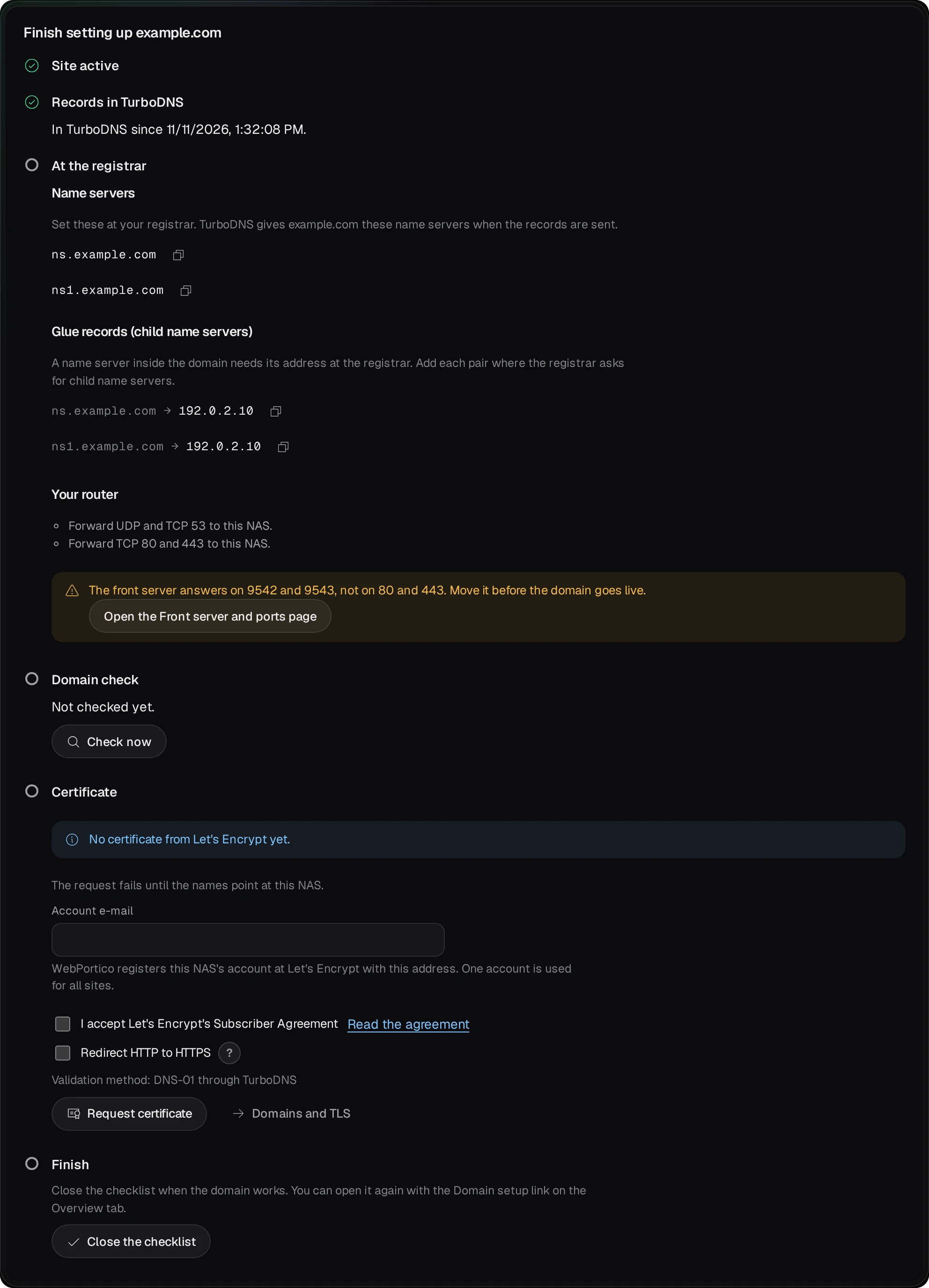
Check now tests seven things from the NAS: Name servers at the registrar, Glue records, TurboDNS on this NAS, Public resolvers, The www name, Front server (HTTP) and Front server (HTTPS). Each one says Matches, Not yet, Differs, No answer or Skipped, with what it expected and what it found. The check passes when the registrar names this NAS’s name servers, public resolvers give the site’s address and the front answers over HTTP. For hours after a change at the registrar, not passed yet is normal: press Check now again later. The check runs on the NAS, so it cannot see whether ports 53, 80 and 443 reach the NAS from the internet.
The certificate. Once the check passes, Request certificate becomes the main button. Type the Account e-mail (one account serves every site) and, the first time, tick I accept Let’s Encrypt’s Subscriber Agreement. The row says how Let’s Encrypt will check the names. With the front on port 80, it fetches a file over HTTP (HTTP-01). With the front on its own ports and TurboDNS on the NAS, it looks for a TXT record that WebPortico adds through TurboDNS and removes afterwards (DNS-01). The site’s Domains and TLS tab changes the way. When the certificate is there, press Preview changes on the Sites page and apply the changes: only then does the site serve it. WebPortico renews it by itself when 30 days or less are left.
09Mail on a phone and in mail programs
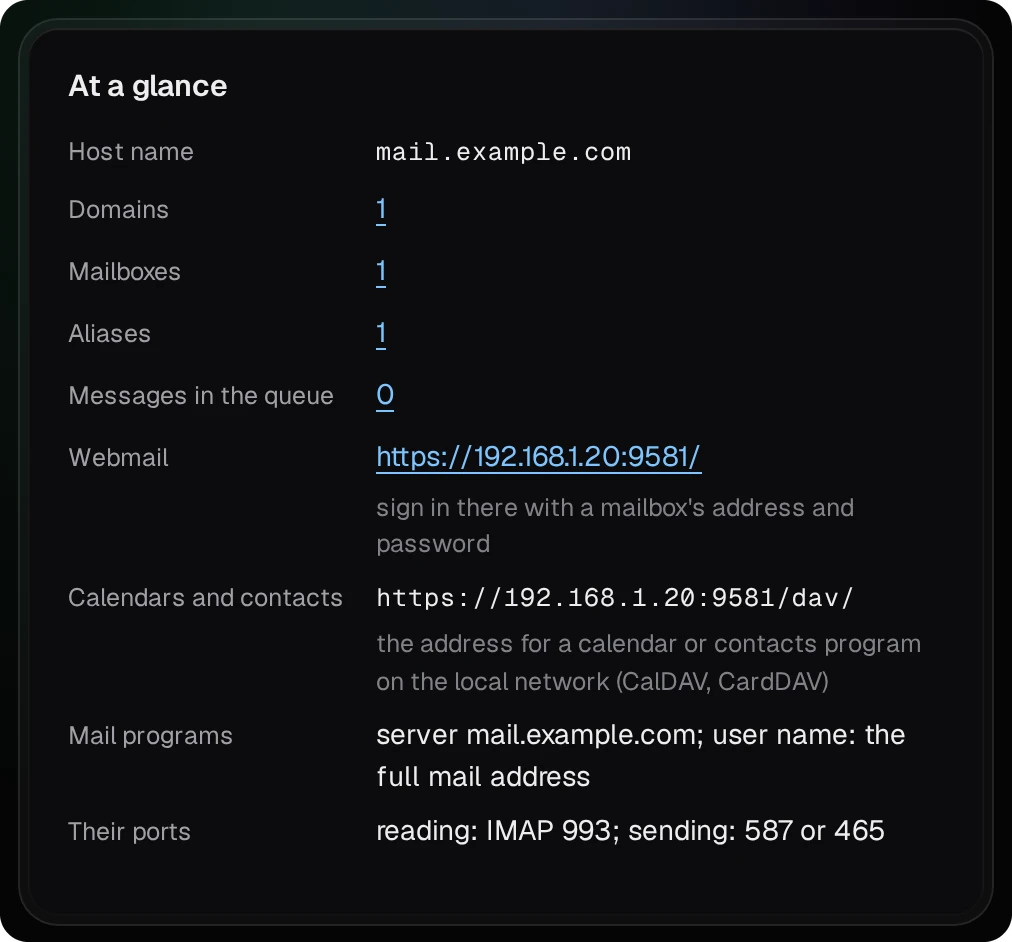
Webmail is at https://192.168.1.20:9581/ on the local network. Sign in with a mailbox’s full
address and its password. On Mailboxes, a mailbox’s Open webmail opens this page with its address already filled in. For a mail program or a phone’s mail app, the Overview’s At a
glance lists the settings:
| Setting | Value |
|---|---|
| Server for reading and for sending | mail.example.com |
| User name | the full mail address, such as anna@example.com |
| Reading (IMAP) | port 993, SSL/TLS |
| Sending (SMTP) | port 587 with STARTTLS, or port 465 with SSL/TLS |
| Password | the mailbox’s password, for both |
The mail ports have a certificate of their own. MailServerPro makes a self-signed one for its Host name, so a mail program or a phone asks once whether to trust it. To use another certificate, open Settings and set Certificate to The NAS’s certificate from QTS (it must name the Host name) or to Files you put in the data folder.
Calendars and contacts are at https://192.168.1.20:9581/dav/ on the local network, with the same
address and password.
Webmail from outside. A WebPortico site can put MailServerPro’s web pages on the
internet. Add a site named webmail.example.com with the More names
mta-sts.example.com autoconfig.example.com autodiscover.example.com, the kind Reverse proxy
and the Proxy target https://127.0.0.1:9581. Webmail then answers at
https://webmail.example.com/, other mail servers can read the domain’s MTA-STS policy, and mail
programs that look for their settings at autoconfig.example.com find them. MailServerPro sees each
visitor’s own address, so failed sign-ins lock out that visitor and not the whole site. Its admin panel answers
under these names too, at /admin/. Without this site, type a mail program’s settings by
hand.
10Check that it works
- In WebPortico. Check now on the site’s checklist (section 08).
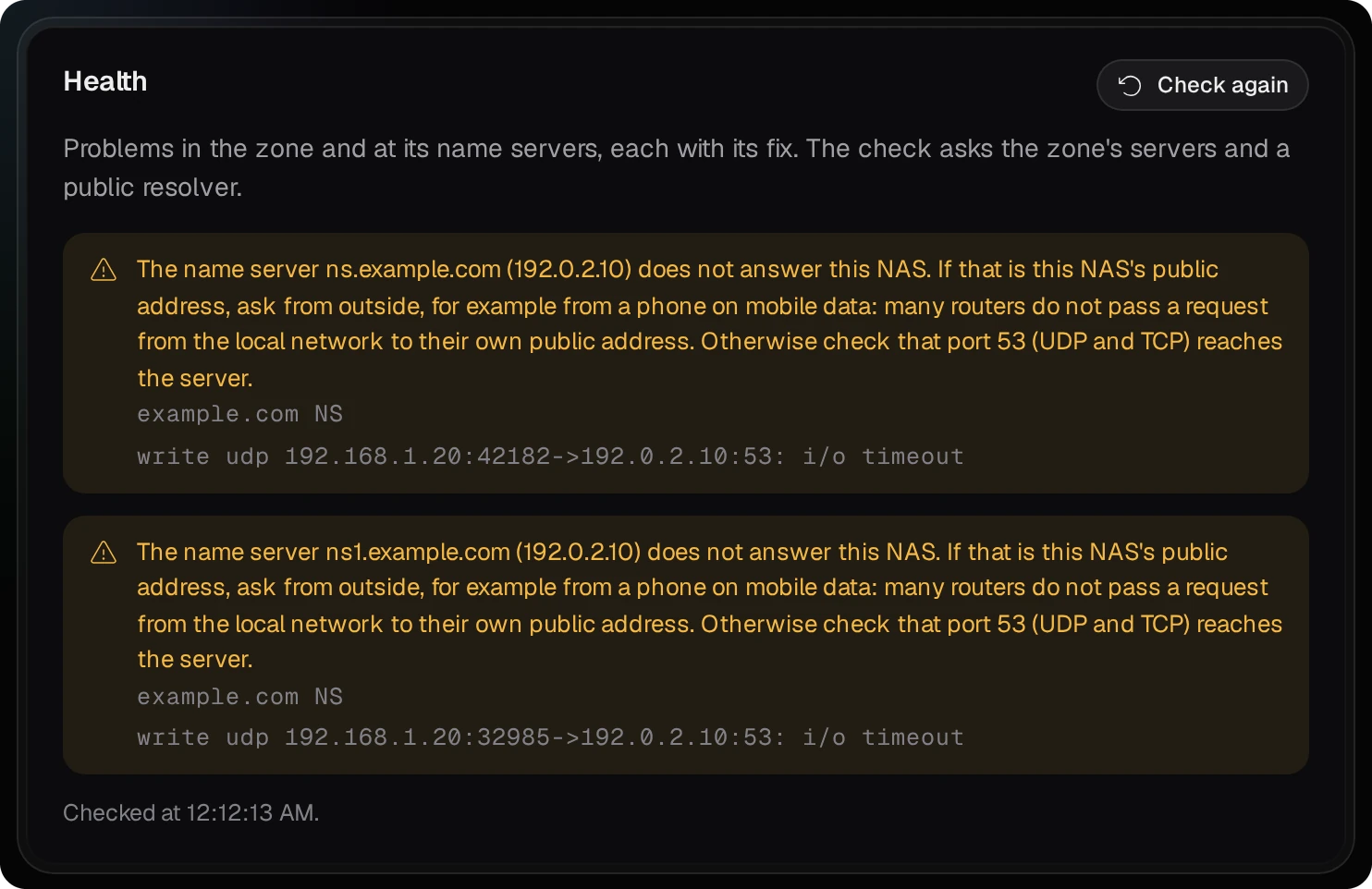
- In TurboDNS. The zone’s Health tab lists the zone’s problems, each with
its fix: name servers that do not answer or serve an old copy, and a DS record at the registrar that does not
match. Check propagation on a record’s row shows what this NAS, each of the zone’s name
servers and the public resolvers 1.1.1.1, 8.8.8.8 and 9.9.9.9 answer. A name server at the NAS’s public
address may not answer the NAS itself, because of the router; ask from outside to be sure.
- From a computer. Ask a public resolver for the name servers, the site’s address, the
MX record and the DKIM key (
digon macOS and Linux;nslookup -type=NS example.com 1.1.1.1and so on, on Windows):
dig +short NS example.com @1.1.1.1
dig +short A www.example.com @1.1.1.1
dig +short MX example.com @1.1.1.1
dig +short TXT s202610._domainkey.example.com @1.1.1.1
- The site. Open
https://example.com/andhttps://www.example.com/on a phone on mobile data. - A test message. Sign in to webmail as
anna@example.comand write to a mailbox at another provider. In the received message’s headers (often “Show original”),Authentication-Resultsshould saydkim=pass,spf=passanddmarc=pass. Reply to it: the reply reaches webmail when port 25 reaches the NAS. A message still waiting to go out shows on MailServerPro’s Queue page, with the reason.
11When something fails
Each app explains what went wrong in its own words. These are the messages you are most likely to see on the first day:
- “The first-run setup closed 60 minutes after the panel started.”
- WebPortico
- The panel takes its first password only in the first hour after it starts. Restart the app in App Center and set the password within the hour.
- “The first sign-in works only from a computer on the local network.”
- TurboDNS (WebPortico says it in other words)
- The panel takes its first password only from a computer on the local network. Open it from a computer at home or in the office, not over the internet.
- “The mail server has no administrator yet. The first one is made from a computer on the local network …”
- MailServerPro
- MailServerPro makes its first administrator only for a computer on the local network (a private or loopback address). Open its panel from a computer at home or in the office.
- a placeholder beside the Host name
- MailServerPro, At a glance
- The mail server has no name on the internet yet. Type it under Settings → Host name, such as
mail.example.com(section 03). - “These changes have expired: they are older than 30 minutes, were already sent, or TurboDNS was restarted. Click Try again to get a new list.”
- WebPortico, sending the records
- The changes can be sent once, within 30 minutes. Press Try again, read the new list and send it.
- “Last check …: not passed yet.”
- WebPortico, the checklist
- At least one item of the domain check does not match yet. Read the items that do not say Matches. Right after a change at the registrar, wait and check again.
- “The front server uses port 9542, not 80. Forward port 80 on your router to port 9542 on this NAS, or choose DNS-01.”
- WebPortico, Let’s Encrypt
- Let’s Encrypt’s HTTP-01 check comes in on port 80, and the front listens on 9542. Forward port 80 to 9542, or move the front (section 06).
- “The last certificate request (…) failed: …”
- WebPortico, Domains and TLS
- The words after the colon come from Let’s Encrypt. Most often the names do not point at the NAS yet, or port 80 does not reach it.
- “PowerDNS does not answer”
- TurboDNS, the status bar
- The panel gets no answer from its DNS server, PowerDNS. Stop and start TurboDNS in App Center, then read its log.
- stopped beside a service
- MailServerPro, Overview
- That part of the mail server is not running. Open its log beside it. Stopping and starting the app in App Center starts every service again.
The logs:
- WebPortico: each site’s Logs tab, the Services page, and the files in
logs/of its data folder,<install volume>/WebPortico(nginx, httpd, PHP and Let’s Encrypt each have their own). - TurboDNS:
data/log/pdns.log(the DNS server) anddata/log/panel.log(the panel) in the app’s install folder, such as/share/CACHEDEV1_DATA/.qpkg/TurboDNS. - MailServerPro: the Logs page of its panel, and the files in
log/of its data folder,<install volume>/MailServerPro.
WebPortico installed again, or its data moved
Each site runs under an account of its own, ws-1, ws-2 and so on, and the
account’s description in /etc/passwd names WebPortico’s data folder. If you remove WebPortico and
install it again on the same volume, it uses the same data folder and the sites come back as they were. If you
install it with a different data folder while the old accounts are still there, WebPortico refuses the first preview of changes and names the ws- line that is in the way.
To move WebPortico’s data to another volume, stop WebPortico in App Center, move its data folder, write the
new path into etc/data-dir in WebPortico’s install folder and start it again. The start takes the
sites’ accounts back, changing only their description to the new folder, and writes the servers’ files for the
new folder, so the sites answer at once, with no apply. WebPortico refuses the next preview of changes if the old folder
is still there (you copied it instead of moving it) or if no site was ever applied. The refusal names each
ws- line. Sign in over SSH as admin and change the description in each of those lines to
WebPortico site of followed by the new folder. Do not start a second install on an empty data
folder to replace the first one: it takes over neither the sites nor their accounts.
12Without a public address
Behind CGNAT, or with a router that forwards no ports, WebPortico can still put the website on the internet through a Cloudflare Tunnel: cloudflared on the NAS connects out to Cloudflare, and Cloudflare passes the site’s visitors to the front. The domain’s name servers must then be Cloudflare’s, so TurboDNS does not answer for it. Mail cannot reach the NAS this way: other servers deliver to the MX address on port 25.
- In the wizard’s DNS step pick My registrar or DNS provider and clear This NAS’s public IPv4 address. The site is then saved without a checklist. Add no A, AAAA or CNAME record for the site’s names at Cloudflare yourself.
- Finish the wizard and apply the site.
- On Front server and ports, in the card Reach the sites from the internet through Cloudflare, paste an API token of your Cloudflare account with the permissions the card lists, press Check the token, pick the zone and press Turn the tunnel on.
- Turn on Reach this site from the internet through Cloudflare for the site.
Through the tunnel, visitors see Cloudflare’s certificate. On Cloudflare’s free plan one request uploads at most 100 MB, and Cloudflare waits at most 125 seconds for an answer. Turn the tunnel off before you remove WebPortico: the removal leaves its records and the tunnel at Cloudflare.
13Later: DNS and mail on the site’s page
Once the site runs, everyday changes don’t need TurboDNS or MailServerPro open. The site’s page has two tabs for them.
- DNS. The tab shows the records of the zone that holds the site’s name, wherever the zone is kept: in TurboDNS on this NAS, or at Cloudflare or OVHcloud with the key you saved. Add a record with Add record, or change one in its row. Then click Review changes: you see what will change before anything is saved. Apply changes saves exactly that list. With TurboDNS, the tab also shows whether the zone is signed with DNSSEC and gives you the DS record for your registrar.
- Mail. The tab shows the domain’s mailboxes with their used space and quota, the aliases, the DKIM record to publish and the result of the last deliverability check. New mailbox and New alias add more.
If MailServerPro is not installed, or TurboDNS or MailServerPro is too old, the tab says what to install or update.
A site you add later, or a new name on an existing site, gets its records without the wizard. Preview changes lists the A and AAAA records the change needs, and Apply changes saves the site first, then the ticked records. A name that already has a CNAME record, or points to another server, stays as it is, and the list says so. When you delete a site, the list offers to remove its records too, unticked. If WebPortico can’t change the zone, the list shows the records to add by hand and where the zone is kept.
14Nothing to set up: nightly copies and repairs after a crash
Besides the backups you set up on the Backups page, WebPortico keeps its own copies of everything it serves. Every night at 01:30 it copies every site’s files, every database and its own settings, checks each copy and keeps 14 days of them. A file that has not changed since the night before takes no extra space, and the copies never leave less than 20 GB free on the volume (10 % on a small one). There is nothing to turn on; the Safety net card on the Backups page shows the copies.
When something breaks, for example after a power cut, WebPortico repairs it from these copies by itself:
- A database that does not start. WebPortico saves what it can still read, moves the damaged data folder aside and restores every database from the newest checked copy. Changes made after that copy are missing, and the notification says from when.
- Damaged tables. They are repaired; when that is not possible, only that database is restored.
- A cache or a configuration file. A Valkey cache whose saved file is damaged starts empty, and a configuration file of nginx, Apache or a site’s PHP that no longer loads is put back from the last one that worked.
Each repair is listed on the Backups page under Automatic recovery and sent as a QTS notification. Damaged data is kept aside, never deleted.