Every site and app as a tile
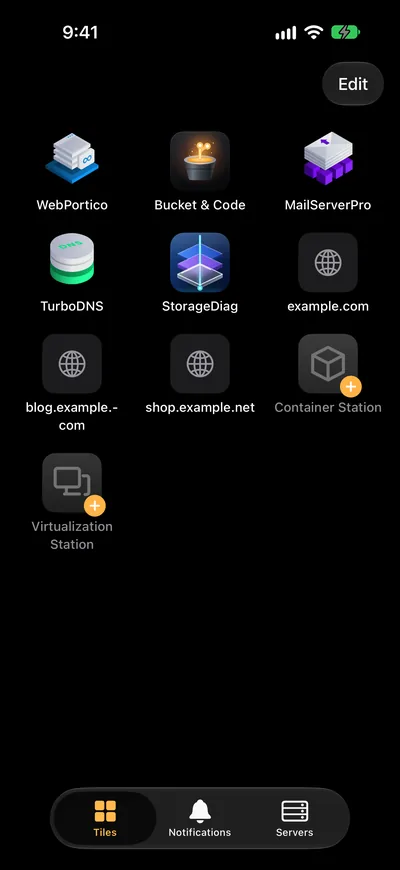
One grid holds the tiles of every WebPortico you paired: its panel, its sites and the NAS's apps.
WebPortico›iPhone
 RePortico
The sites that WebPortico serves on your NAS, and the NAS's apps, as tiles on your iPhone. A tap opens a site or an app.
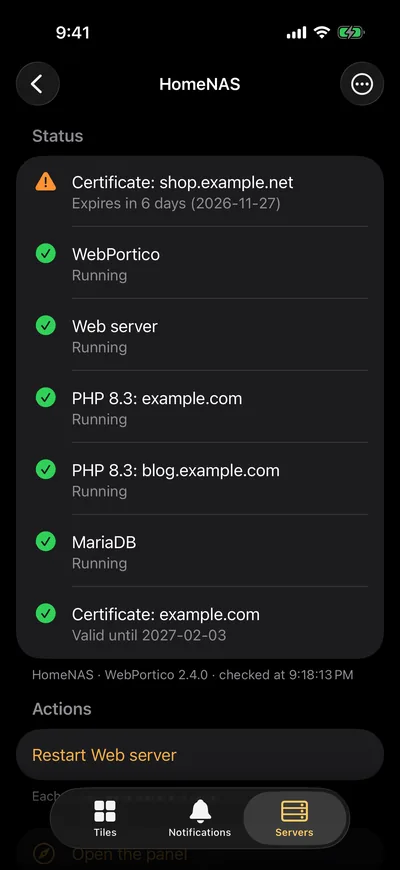
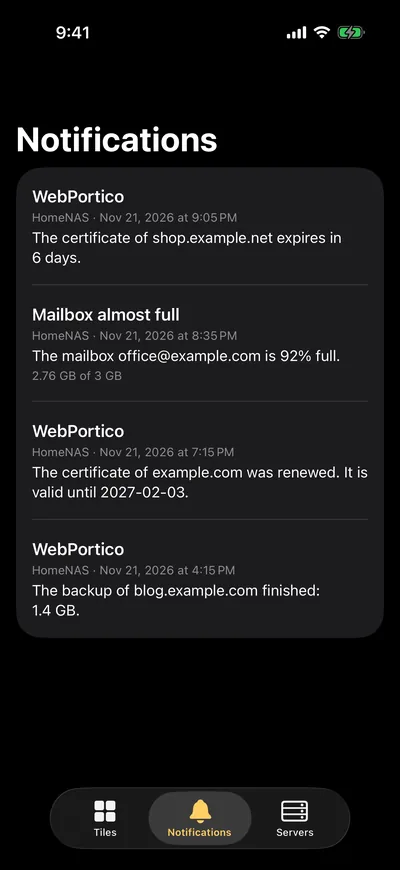
RePortico pairs with WebPortico on your QNAP NAS. It has three tabs: Tiles, Notifications and Servers.
One grid holds the tiles of every WebPortico you paired: its panel, its sites and the NAS's apps.
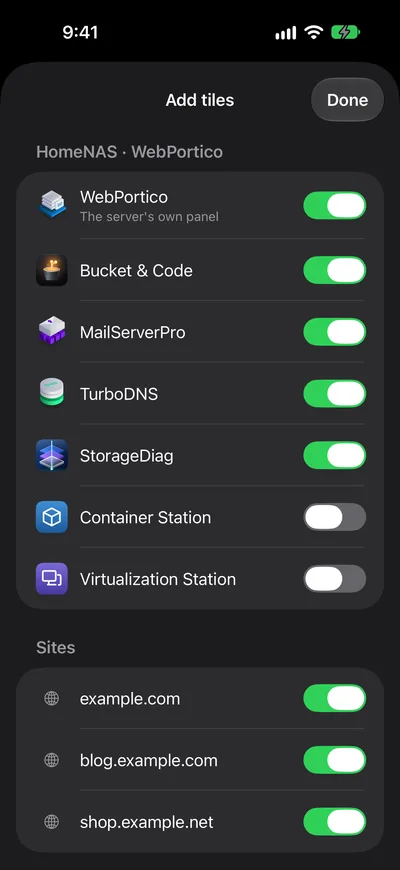
“Edit” moves tiles and takes them off the screen. Its plus lists each server's sites and apps with a switch for each.
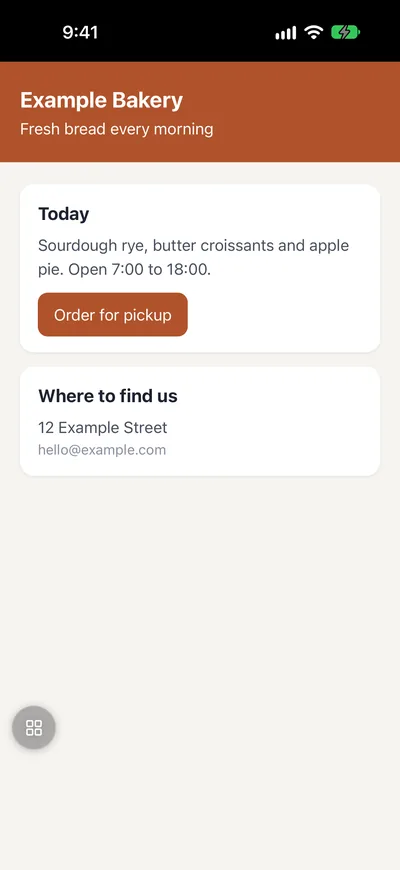
The site opens through WebPortico's phone port. The round button goes back to the tiles.
On a computer on your home network, open the WebPortico panel at its own address and go to:
The page shows a QR code. The code works once, for 10 minutes.
Connect the phone to the same network as the NAS. In the app, tap “Add server”, then “Scan the QR code”.
Or type the address and the code. Under the QR code the page shows the address, the code and the certificate fingerprint. Type the address and the code in the app. Pair only if the app shows the same fingerprint.
On the Phone app page, under “Remote access”, turn on “Allow connections from outside the home network”. Forward the TCP port that the page names on your router. The app then connects through that port, which answers only paired phones.
RePortico is freeware by Silas, Mariusz Grzybacz. It is an independent project, not made or endorsed by QNAP or Apple. QNAP is a trademark of QNAP Systems, Inc.
Apple, the Apple logo, iPhone and App Store are trademarks of Apple Inc., registered in the U.S. and other countries. The rainbow Apple logo in the site's menu comes from the file Apple_Computer_Logo_rainbow.svg on Wikimedia Commons, where it is marked as public domain because of its simple design. The logo remains a trademark of Apple Inc.