iperf3 on a QNAP NAS: start the server, test the network
iperf3 measures the network between your QNAP NAS and another device. It sends data from memory, so the disks play no part in the result.
QTS and QuTS hero have no iperf3 command of their own. TurboStat adds it, and StorageDiag runs it from the browser in NetScope, as a server or as a client.
01What you need
- TurboStat from the nasutils.net App Center repository. It installs iperf3 on the NAS. TurboStat runs on Intel and AMD (x86_64) with QTS 6.0 or QuTS hero 6.0 or newer.
- StorageDiag from the same repository, to run iperf3 from the browser. Without it, you run iperf3 from an SSH login.
- A second device on the same network: another QNAP NAS, a computer with iperf3, or a Windows computer with NetScope for Windows.
02Start the iperf3 server on the QNAP NAS
- In StorageDiag open Utilities → NetScope → Bandwidth.
- Choose Server. The listener starts at once, on port 5201.
- To use another port or one network interface, change it in the window. The listener restarts.
- Note the address of the NAS that the window shows. The client needs it.
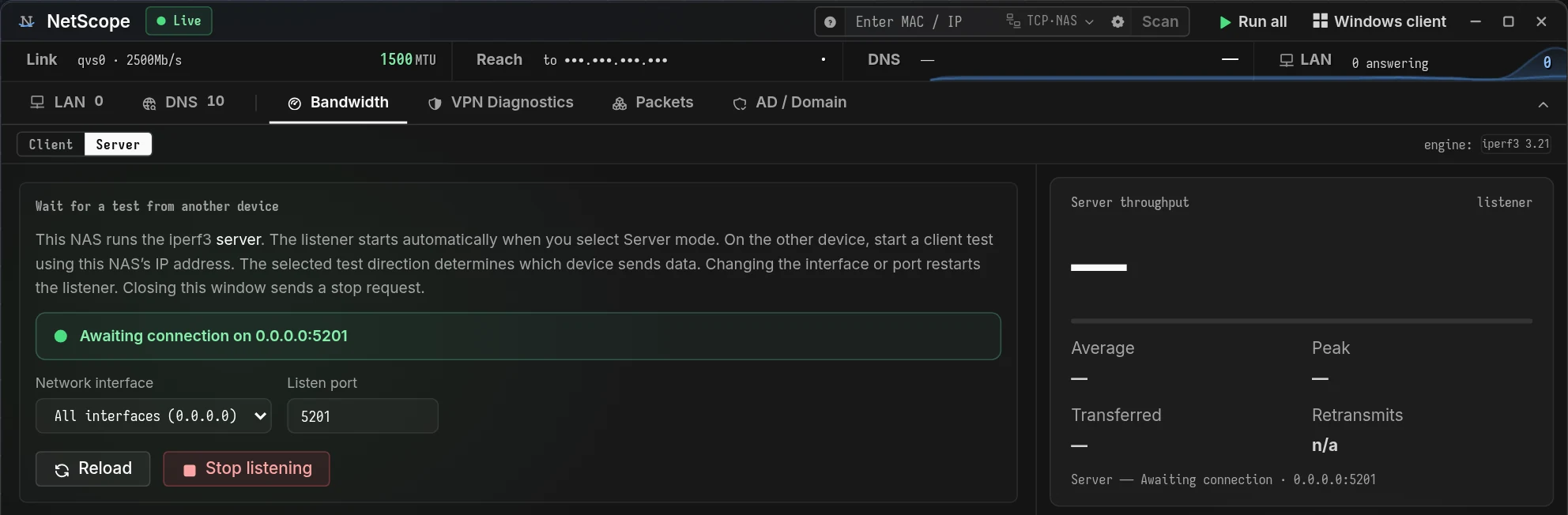
If iperf3 is missing, StorageDiag says so and names TurboStat. Install TurboStat and open the window again.
03Test from a second QNAP NAS
- On the second NAS open Utilities → NetScope → Bandwidth and choose Client.
- Press Scan the network and pick the first NAS. Or choose Manual target and type its address and port.
- Set Duration from 10 s to 10 min, Parallel streams from 1 to 32 and Protocol TCP or UDP.
- Under Direction choose Upload (client → server).
- Press Start the test. Write down Average and, for TCP, Retransmits.
- Choose Download (server → client) and test again. A link can be fast one way and slow the other.
04Test from a computer
Windows: NetScope for Windows finds the QNAP NAS units on the local network and tests both directions against their iperf3 listener. It runs the client on the computer, so the computer needs no listener and no firewall rule.
Any computer with iperf3: start the server on the NAS first. Then, with the NAS at 192.0.2.20:
iperf3 -c 192.0.2.20          # computer → NAS, 10 seconds
iperf3 -c 192.0.2.20 -R       # NAS → computer
iperf3 -c 192.0.2.20 -t 30 -P 4   # 30 seconds, 4 parallel streams
The line marked sender and the line marked receiver give the result. A large gap between them means data was lost on the way.
05Run iperf3 over SSH on the QNAP NAS
TurboStat puts iperf3 in the path of an SSH login. If the QTS console menu opens after you sign in, press Q for the shell.
iperf3 --version | head -1    # iperf 3.21 (cJSON 1.7.15)
iperf3 -s                     # server on port 5201, Ctrl+C stops it
iperf3 -s -1                  # server for one test, then it ends
iperf3 -c 192.0.2.30          # this NAS as the client of another server
A command sent directly over ssh, such as ssh admin@192.0.2.20 iperf3 -s, does not read that path. Give it the full path /usr/app/TurboStat/bin/iperf3.
06Stop the server
- In StorageDiag press Stop listening, or close the window. Closing the window stops the listener too.
- Choosing Client does not stop the listener. Press Stop listening first.
- In an SSH login press Ctrl+C.
A full-rate test fills the link while it runs. Do not open port 5201 to the internet.
07Read the result
- Keep the units apart: 1 Gb/s is 125 MB/s before overhead.
- On a gigabit network expect about 900 Mb/s or more. On faster links expect more in proportion.
- Test both directions. A result far below the slowest link on the path points to a cable, a switch port or a link that negotiated a lower speed.
- If Retransmits grow during the test, packets are lost on the way. Interface diagnostics shows the errors and dropped packets of each interface of the NAS.
iperf3 does not test the disks. To measure the disks and the volume as well, follow QNAP NAS speed test: network, disks and volume.
08When iperf3 does not connect
- “unable to connect to server - server may have stopped running or use a different port, firewall issue, etc.: Connection refused”
- iperf3 on the client
- Nothing listens on that address and port. Start the server on the NAS and check the address and the port.
- “unable to start listener for connections: Address already in use”
- iperf3 -s on the NAS
- Another iperf3 server uses port 5201, often NetScope in Server mode. Press Stop listening, or start the server with
-p 5202and give the client-p 5202. - “Port 5201 on 0.0.0.0 is not available. Another program may use it.”
- StorageDiag
- Another program uses the port. Choose another port in the window, or stop the other iperf3 server.
- The client waits and then stops without a connection.
- A firewall on the NAS, the router or the computer drops the port. Allow port 5201 on the local network: TCP, and UDP for a UDP test.
09Questions
- Does a QNAP NAS have iperf3?
- Not as a command of QTS or QuTS hero. TurboStat from the nasutils.net App Center repository installs iperf3, and StorageDiag runs it from the browser.
- Which port does iperf3 use on a QNAP NAS?
- Port 5201, as on any other system. StorageDiag starts its listener on 5201 unless you choose another port.
- Does iperf3 from TurboStat run on an ARM NAS?
- No. TurboStat is for Intel and AMD (x86_64) only.
- Does iperf3 test the disks of the NAS?
- No. It sends data from memory to memory. The read-only disk scan and the volume test of StorageDiag measure the disks.