QNAP NAS speed test: the network, the disks and the volume
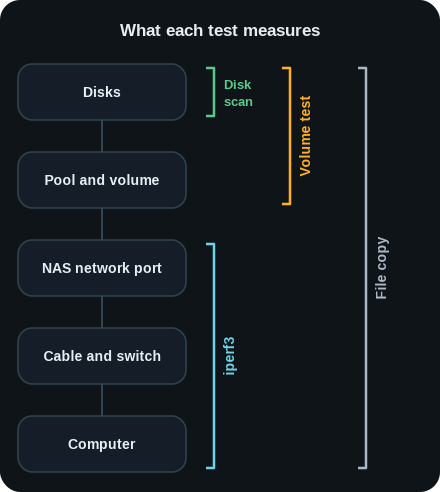
StorageDiag Utilities measures the network, the disks and the volume of your QNAP NAS in separate tests. Compare the results to find the part that slows a file copy.
01What you need
- StorageDiag from this site’s App Center repository, signed in as an administrator.
- TurboStat from the same repository, for the network test: it brings iperf3 to the NAS (x86_64, QTS 6.0 or QuTS hero 6.0 or newer).
- A second device on the network: another QNAP NAS with StorageDiag, or a computer with iperf3. On Windows, NetScope is enough.
Measure after backups and RAID rebuilds have finished. Write down what else was using the disks or the network.
02Test the network with iperf3
iperf3 sends data between two devices without touching the disks.
- On the NAS open Utilities → NetScope → Bandwidth and choose Server. The NAS listens on port 5201 by default. Check the address it shows.
- On the second NAS choose Client, then Scan the network and pick the first NAS, or choose Manual target and type its address and port.
- Set Duration (10 s to 10 min) and press Start the test. Write down Average and, for TCP, Retransmits.
- Change Direction and test again: a link can be fast one way and slow the other.
- On the first NAS press Stop listening.
On a computer with iperf3, iperf3 -c 192.168.1.20 measures the way from the computer to the NAS at 192.168.1.20. Add -R for the way back.
The iperf3 server over SSH, the test from Windows and the messages when iperf3 does not connect: iperf3 on a QNAP NAS.
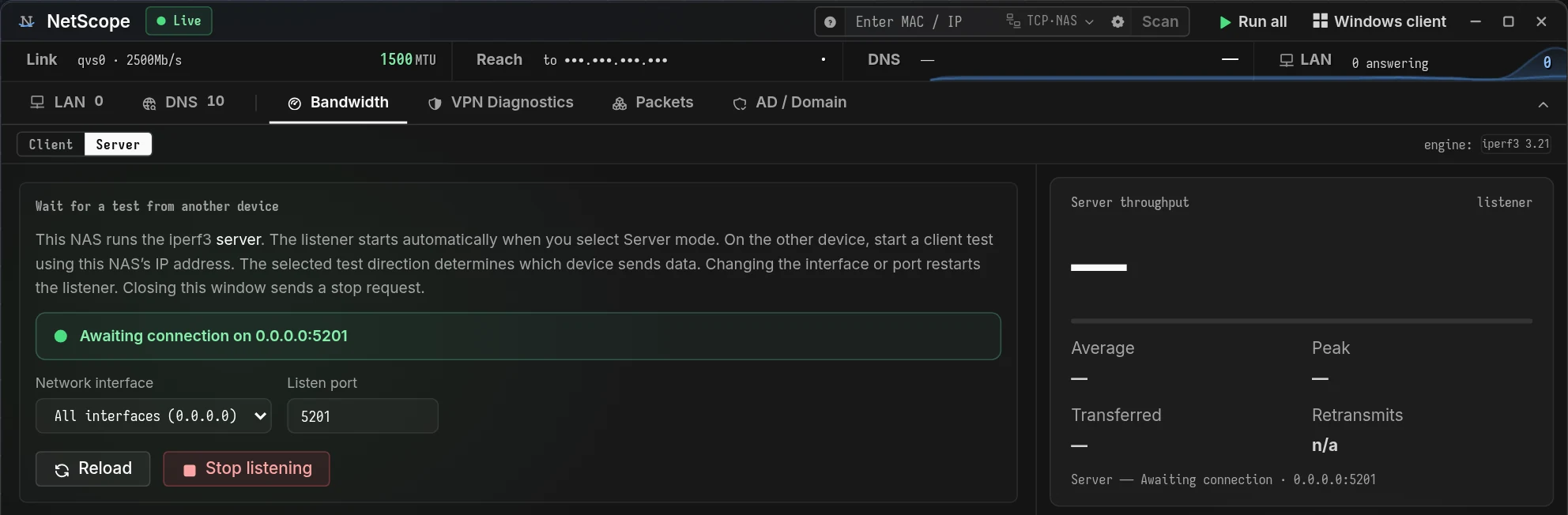
A full-rate test fills the link while it runs. Do not open the test port to the internet.
03Test the disks without writing to them
The read-only scan reads the disks themselves. It writes nothing to them.
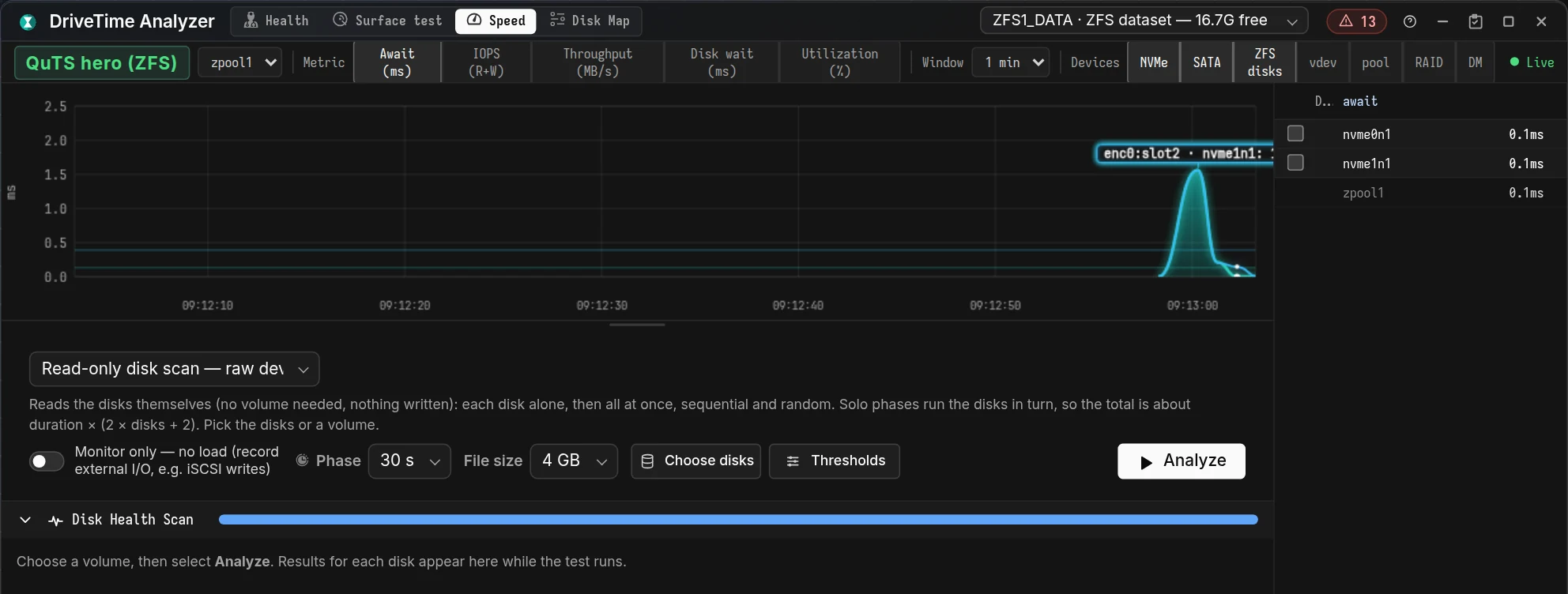
- Open DriveTime Analyzer → Speed.
- Under Test choose Read-only disk scan. Leave Phase at 30 s, or choose from 15 s to 10 min.
- Press Choose disks and tick the disks. With no disk ticked, the scan reads the disks of the selected volume.
- Press Analyze.
It runs four phases: sequential and random reads, each first with one disk at a time, then with all disks at once. The total is about the Phase value × (2 × disks + 2). Four disks at 30 s take about 5 minutes.
04Test the volume
A volume test goes through the file system and the pool under it. It first writes a test file, 4 GB by default, to a temporary folder on the volume, and deletes it when the test ends or is stopped.
- In Speed, choose the volume.
- Choose Sequential READ or Sequential WRITE (1 MB blocks) for large files, or a random test (4 KB blocks) for many small operations. FULL REPORT runs four phases and reads the disks’ SMART data.
- Start the test. Write tests, the mixed test and FULL REPORT ask you to confirm.
- Save report (.md) saves the report and a CSV file with the measurements in the Public share.
The tests load the disks and slow other services. If a disk reports read errors or the RAID is degraded, secure the data first.
05Read the results together
Keep the units apart: 1 Gb/s is 125 MB/s before overhead. On a gigabit network expect about 900 Mb/s or more from iperf3, and more on faster links in proportion.
| What you measured | Where to look |
|---|---|
| iperf3 measures well below the speed of the slowest link on the path | the cable, a switch port, a link that negotiated a lower speed |
| Retransmits grow during the test | packets are lost on the way; Interface diagnostics shows errors and dropped packets of each interface of the NAS |
| iperf3 is fast, the volume test is slow | the disks, the pool or another task that uses them |
| One disk is slower than the others of the same model | that disk: open its SMART data and repeat the scan |
| A disk is fast alone and slow with all disks at once | what the disks share: the backplane, the controller, the power supply or vibration |
| iperf3 and the volume test are fast, copying is slow | the share protocol (SMB, iSCSI) or the computer |
More checks, from RAM to the network: Slow QNAP NAS transfer speeds.